Account detail
The account detail page shows the full profile of a single account. You open it by clicking an account name in the accounts list. The page holds the account header, tabbed navigation, related contacts and opportunities, and a company information panel.
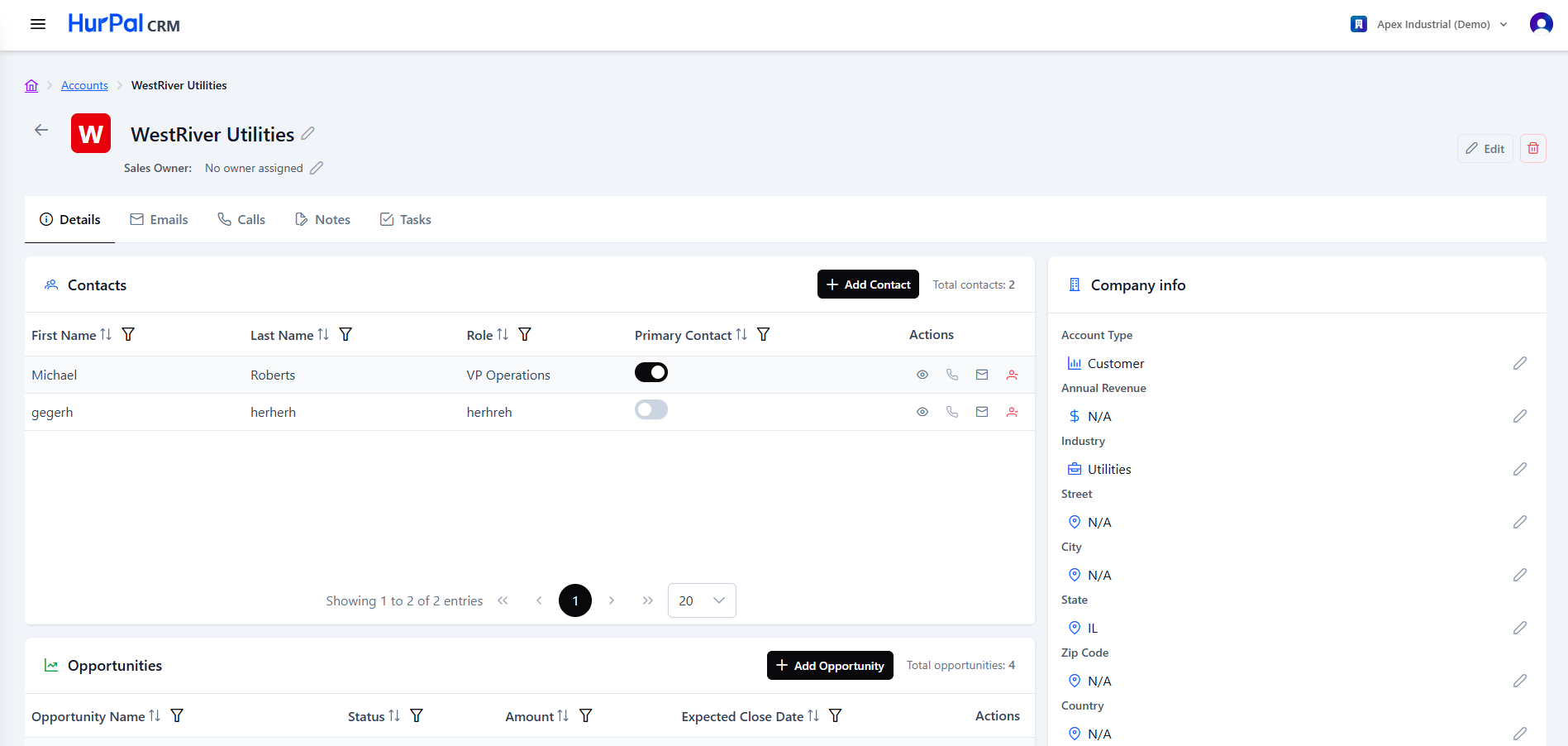
Header
| Element | Description |
|---|---|
| Back arrow | Returns to the accounts list. |
| Account avatar | A colored initial for the account. |
| Account Name | The account name. Edit it with the pencil icon. |
| Sales Owner | The assigned sales representative, or "No owner assigned". Edit it with the pencil icon. |
| Edit | Opens the account in edit mode. |
| Delete (trash) | Deletes the account. |
Tabs
Below the header, the tabs move between different aspects of the account:
- Details: the default view, covering contacts, opportunities, and company information.
- Emails: email correspondence related to the account.
- Calls: logged calls related to the account.
- Notes: notes added to the account.
- Tasks: tasks associated with the account.
Contacts
On the Details tab, the Contacts table lists the people associated with the account.
| Column | Description |
|---|---|
| First Name and Last Name | The contact's name. |
| Role | The contact's role at the company, for example CFO. |
| Primary Contact | A toggle that marks this person as the account's primary contact. |
| Actions | View, call, email, or open the contact's profile. |
Use Add Contact to create a contact linked to this account. A total contacts counter and pagination controls appear with the table.
Opportunities
Also on the Details tab, the Opportunities table lists the deals tied to the account.
| Column | Description |
|---|---|
| Opportunity Name | The name of the deal. |
| Status | The opportunity's current status: open, won, or lost. |
| Amount | The deal value. |
| Expected Close Date | The anticipated close date. |
| Actions | View to open the opportunity. |
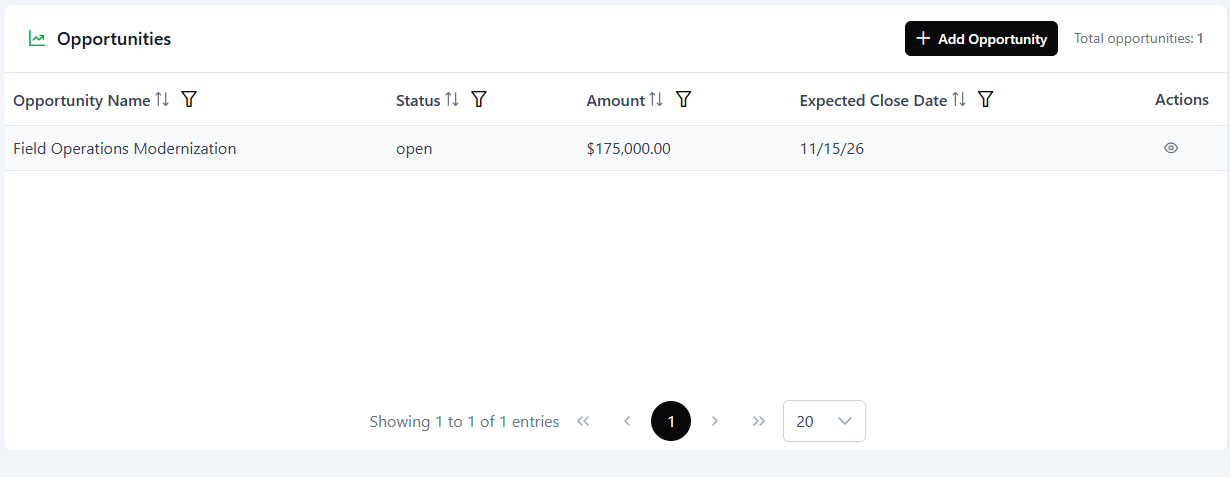
Use Add Opportunity to create an opportunity linked to this account. A total opportunities counter appears with the table.
Company information
A side panel lists the account's key attributes. Each field is edited individually with its own pencil icon:
- Account Type (for example Customer)
- Annual Revenue
- Industry
- Street, City, State, Zip Code, Country
- Website
- Primary Phone
- Description
Fields with no value are shown as "N/A".