Contact detail
The contact detail page shows the full profile of a single person. You open it by clicking a contact's name in the contacts list. The page holds the header, tabbed navigation, contact and company information panels, and record history.
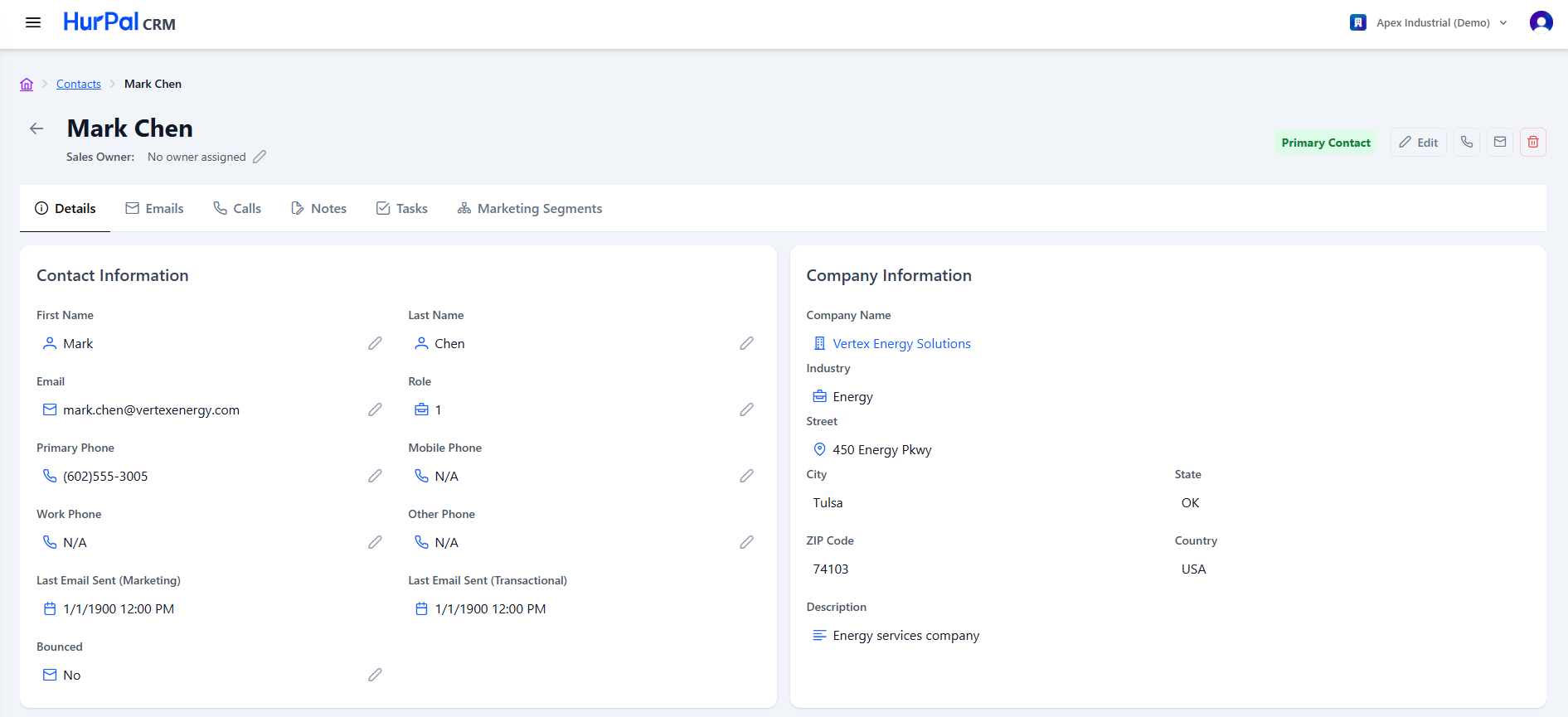
Header
| Element | Description |
|---|---|
| Back arrow | Returns to the contacts list. |
| Contact Name | The contact's full name. |
| Sales Owner | The assigned sales representative, or "No owner assigned". Edit it with the pencil icon. |
| Edit | Opens the contact in edit mode. |
| Phone icon | Starts a call to the contact. |
| Envelope icon | Composes an email to the contact. |
| Delete (trash) | Deletes the contact. |
Tabs
- Details: the default view, covering contact information, company information, and activity.
- Emails: email correspondence with the contact.
- Calls: logged calls with the contact.
- Notes: notes added to the contact.
- Tasks: tasks associated with the contact.
- Marketing Segments: the segments this contact has been added to.
Contact information
The contact information panel holds editable fields, each with its own pencil icon:
- First Name and Last Name
- Role (for example CFO)
- Primary Phone, Mobile Phone, Work Phone, and Other Phone (shown as "N/A" when not set)
- Last Email Sent (Marketing) and Last Email Sent (Transactional): the timestamps of the most recent emails sent to the contact
- Bounced: whether the contact's email has bounced (Yes or No)
info
The email activity fields (last email sent and bounced) are set automatically from your email and marketing activity. You do not edit them by hand.
Company information
The company information panel shows details inherited from the linked account. These are read-only on the contact:
- Company Name, a link to the account detail page
- Industry
- Street, City, State, ZIP Code, Country
- Description
Activity and dates
A footer panel shows the record history:
- Created Date
- Modified Date
- Created By, the user who created the record