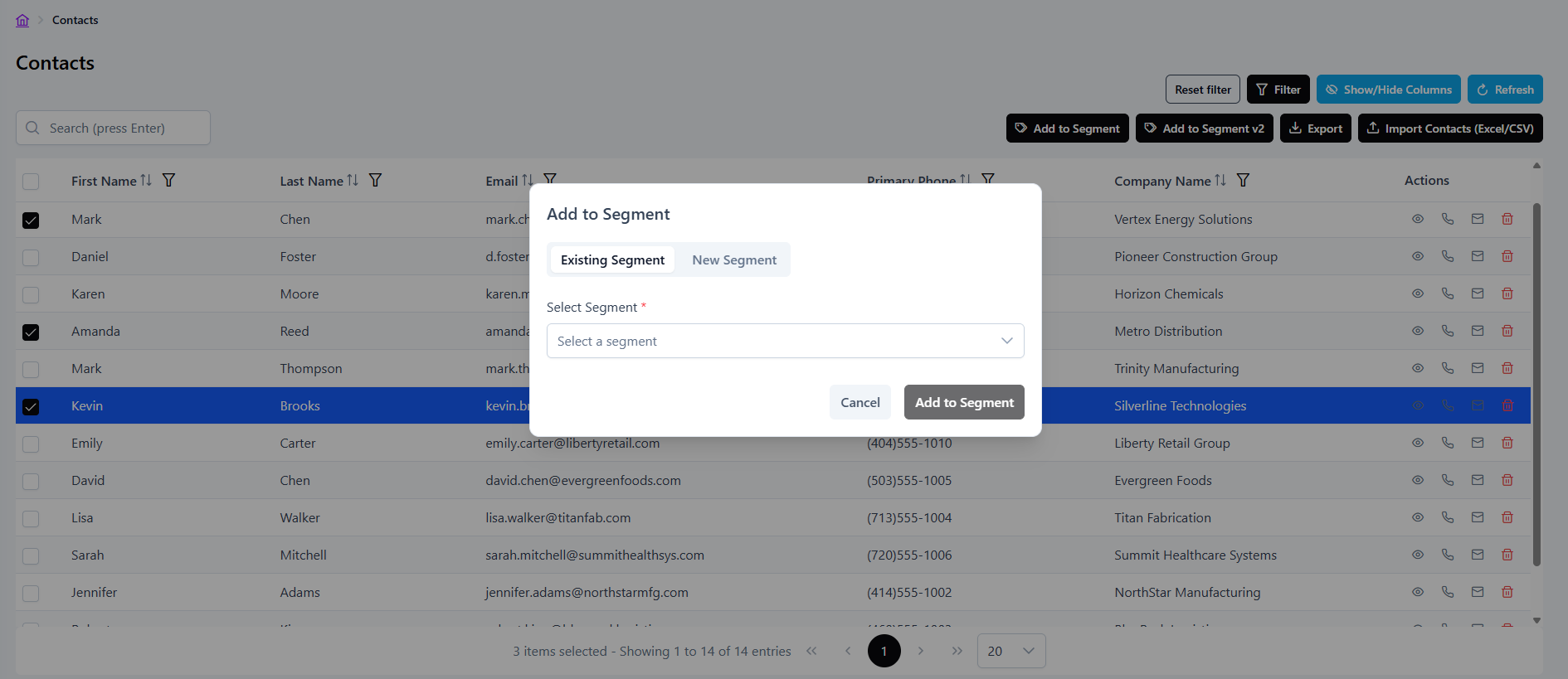
Contacts list
The Contacts screen lists every individual person stored in the CRM. It works like the accounts list, with the addition of segmentation tools for marketing.
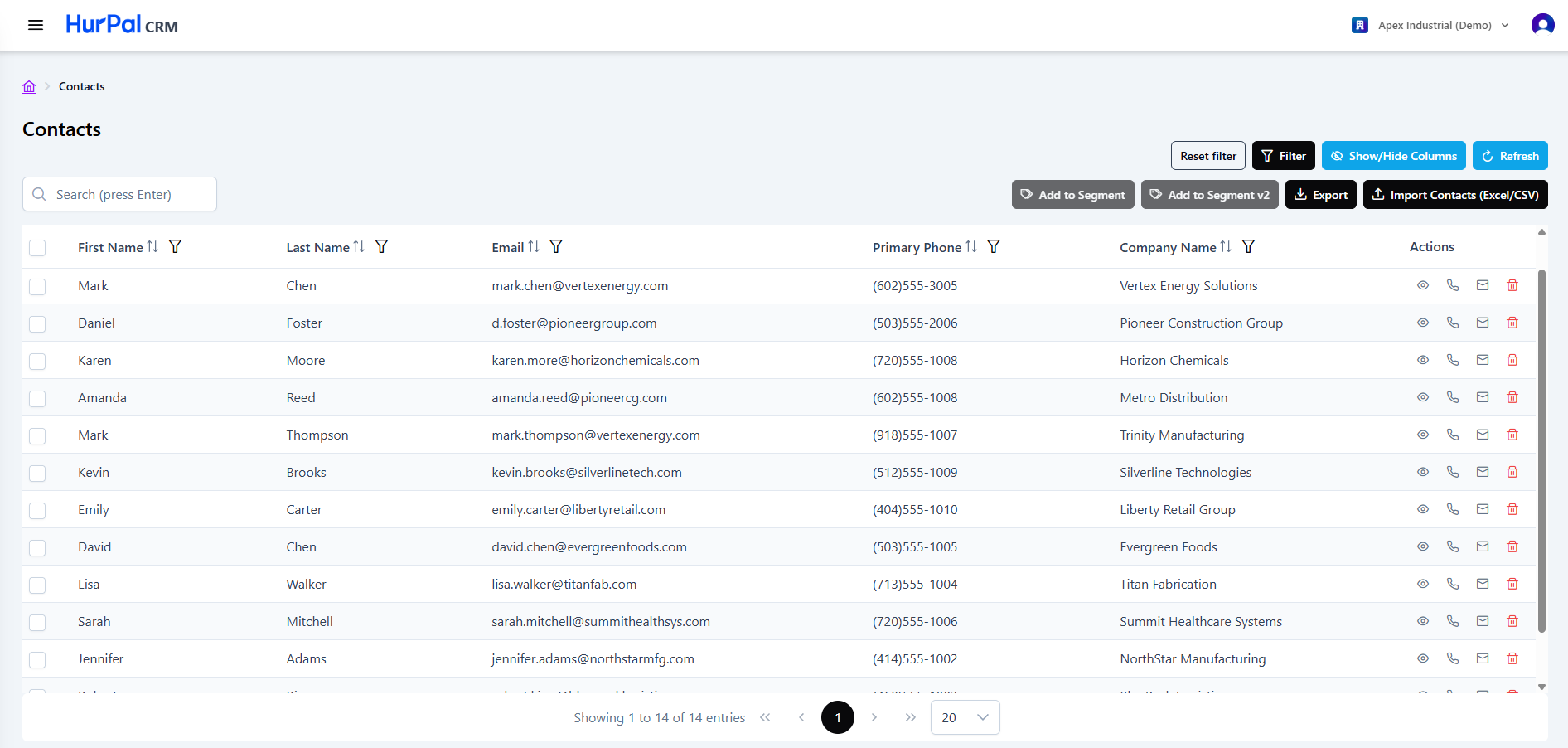
Toolbar
| Control | What it does |
|---|---|
| Search | Free-text search for contacts. Press Enter to run the search. |
| Row checkboxes | Select one or more contacts to act on in bulk. The header checkbox selects all rows. |
| Reset filter | Clears all applied filters. |
| Filter | Opens the advanced filtering options for the list. |
| Show or hide columns | Chooses which columns are visible in the table. |
| Refresh | Reloads the list with the latest data. |
| Add new contact | Opens a form to create a contact manually. |
| Add to Segment | Adds the selected contacts to an existing segment. |
| Export | Exports the current list. |
| Import Contacts | Bulk-imports contacts from an Excel or CSV file. |
Contacts table
The table lists contacts across the columns below. Most columns can be sorted and filtered.
| Column | Description |
|---|---|
| First Name and Last Name | The contact's name. Click it to open the contact detail page. |
| The contact's email address. | |
| Primary Phone | The contact's primary phone number. |
| Company Name | The account the contact is associated with, if any. |
| Actions | Row actions: view (eye), call (phone), email (envelope), and delete (trash). |
Pagination
Below the table:
- A summary shows the current range and total record count, for example "Showing 1 to 14 of 14 entries".
- Page controls (first, previous, numbered pages, next, last) move through the results.
- A page-size selector controls how many rows appear per page.
Selecting contacts in bulk
Use the row checkboxes to select several contacts at once, then use Add to Segment to group them for a marketing campaign, or Export to download them.