Process an assemble-to-order sales order
Use this when a sales order contains an item that must be assembled before it ships. You’ll build and post the assembly first, then pick and ship the sales order.
Stages in Wave Selections, in order: Order Released → Assembly Ready → Assembly Picked → Assembly Posted → WHSE Shipment → Posted Quality → Picked → Shipped. Stages in bold are the ones this guide covers.
The sales order must be released and showing in Wave Selections. Have the sales order number ready.
Part 1: Build the assembly
Create and register the assembly pick, then assign the lot and post the assembly order.
-
Find the sales order
In the FastPack portal, open Wave Selections and search by sales order number.
-
Load the assembly
Select the order and click L/UL Assembly. The Open Assemblies page opens.
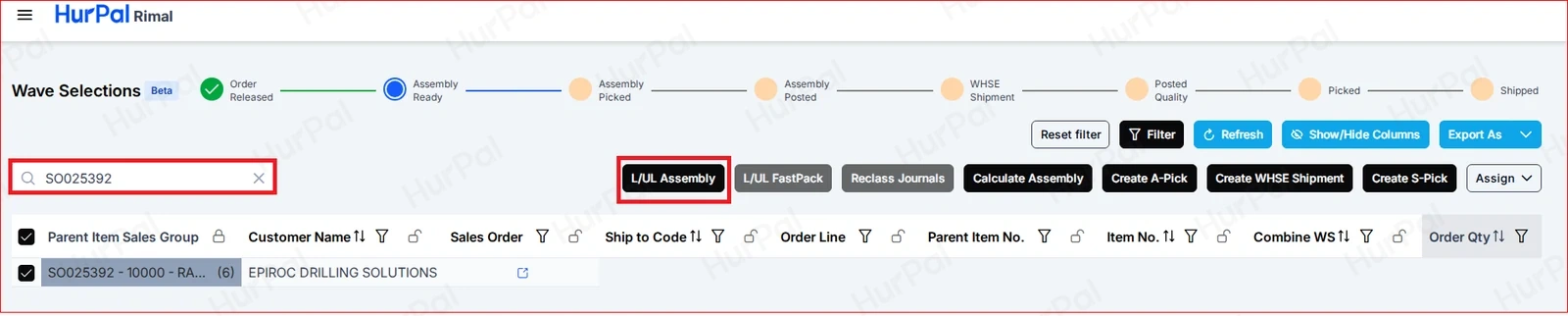
-
Calculate the assembly to complete
Click Calculate Assembly. The Assembly to Complete quantity is updated.
-
Assign the assembler
Click Assign Assembler and choose who will build the assembly.
-
Create the assembly pick (A-Pick)
Click Create Pick.

-
Check item tracking on the components
Item tracking lines are filled in on the assembly components automatically.
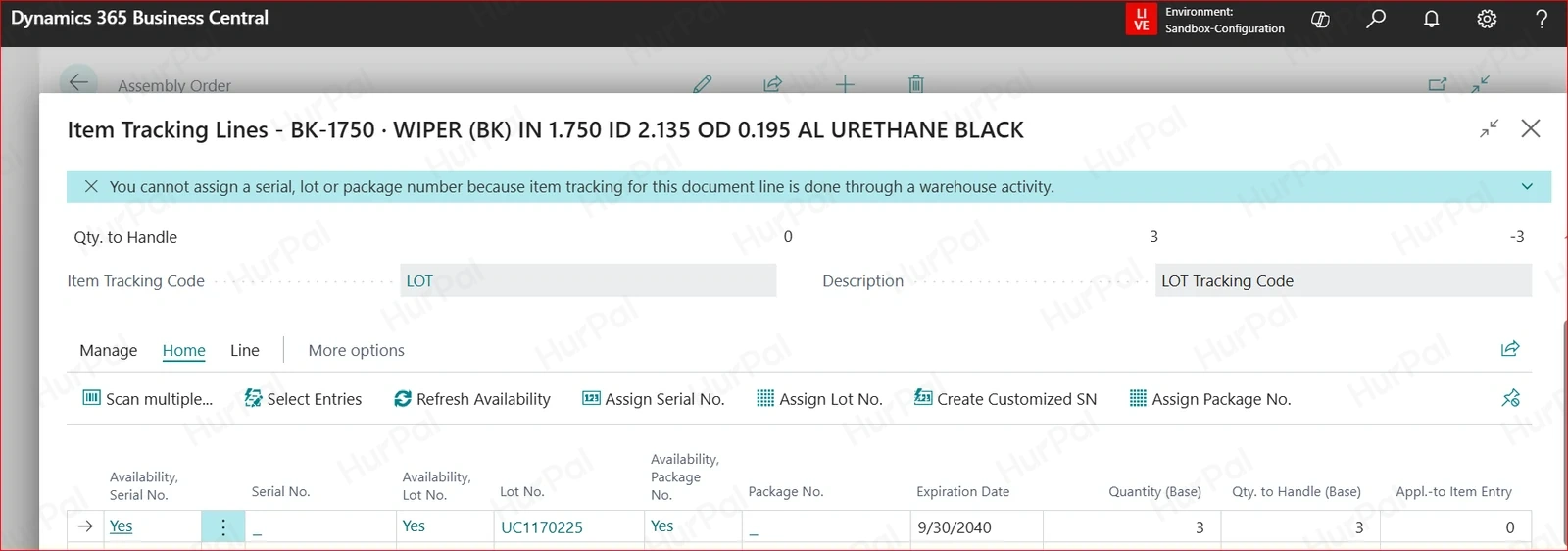
-
Register the assembly pick
Open the warehouse pick in Business Central, click Register Pick, then click Yes to confirm.
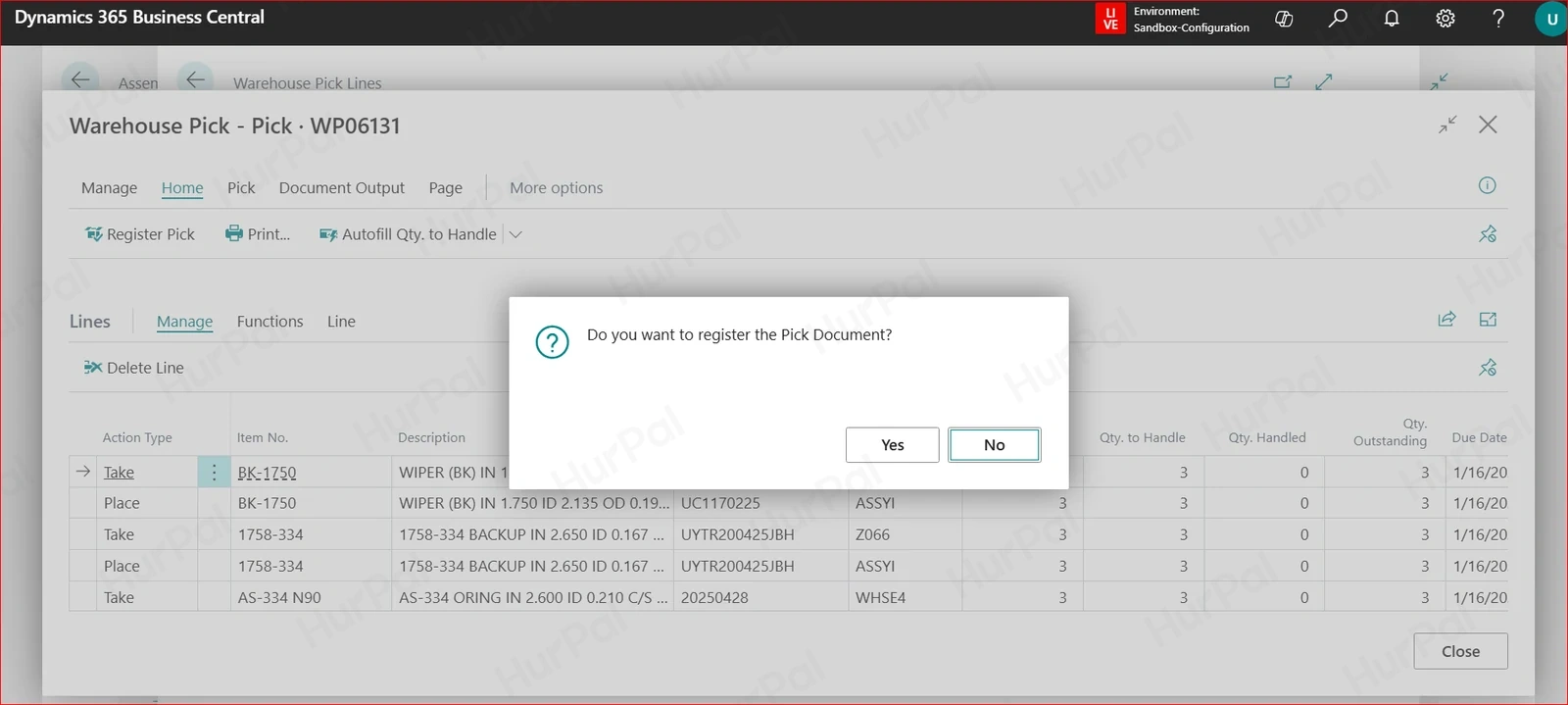
-
Assign the lot and post the assembly
Once the pick is registered, return to the Open Assembly page in FastPack. Click Assign LOT to assign the lot number, then click Post Assembly.
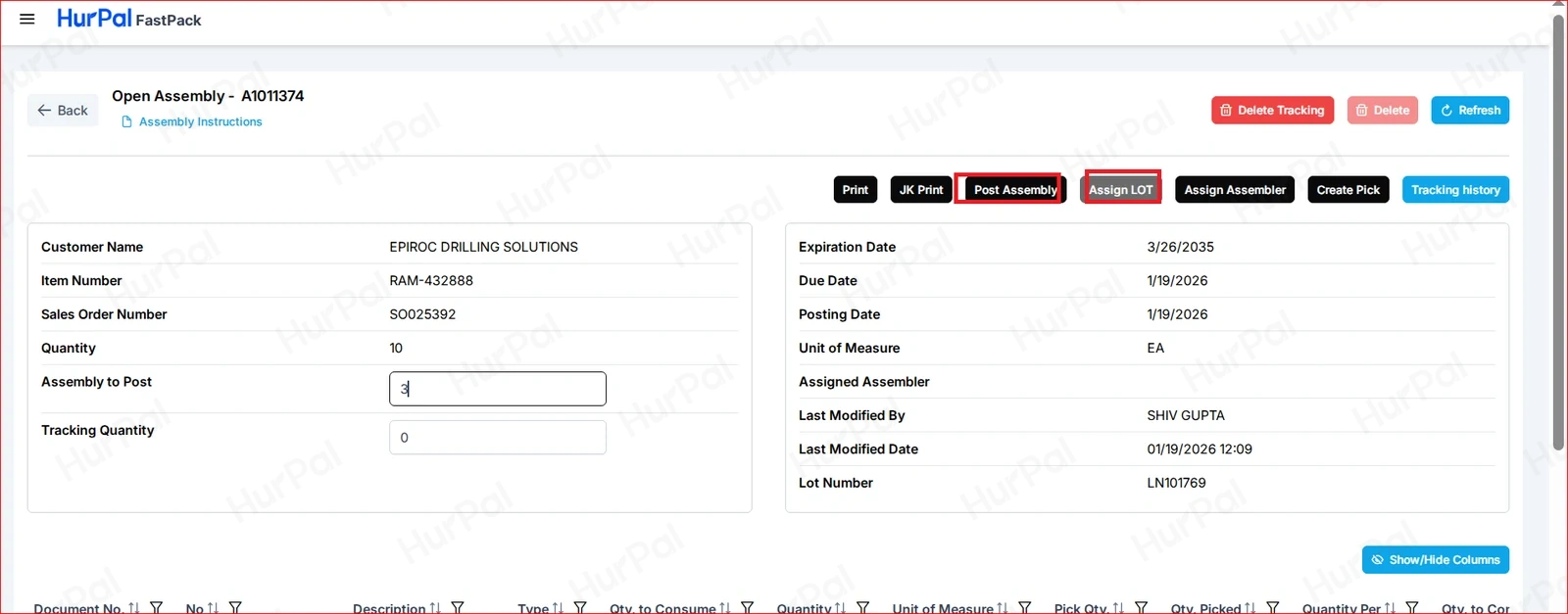
-
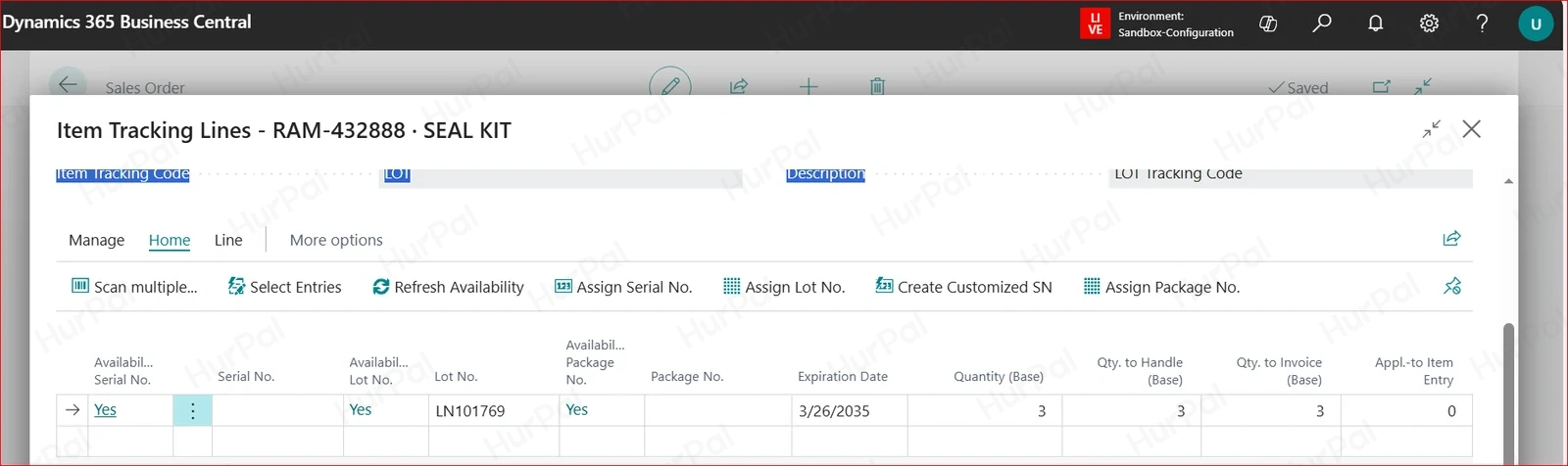
Check item tracking on the sales order
After the assembly order is posted, item tracking lines are updated on the sales order with the assembled lot.
Part 2: Pick and ship the order
Create the warehouse shipment and shipment pick, then register and post.
- Create the warehouse shipment
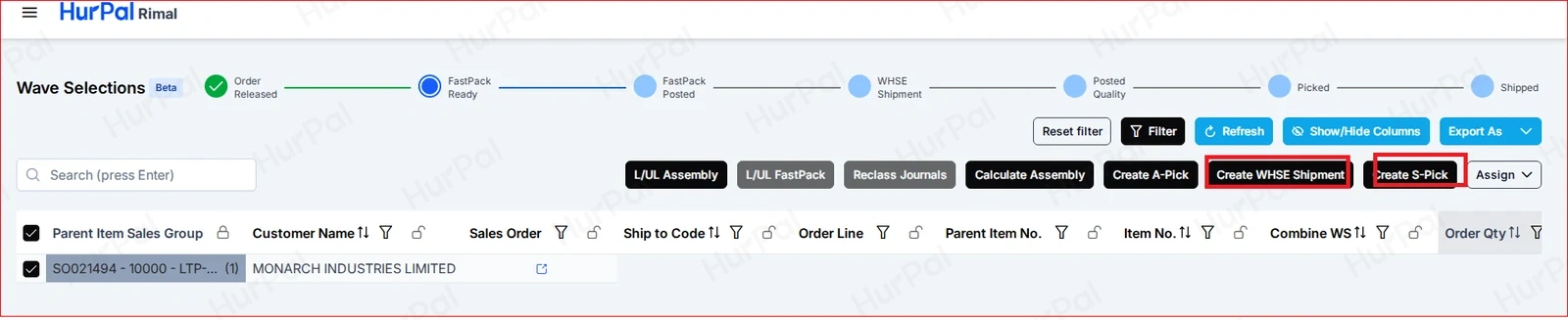
In Wave Selections, select the order and click Create WHSE Shipment.
- Create the shipment pick (S-Pick)
Click Create S-Pick.
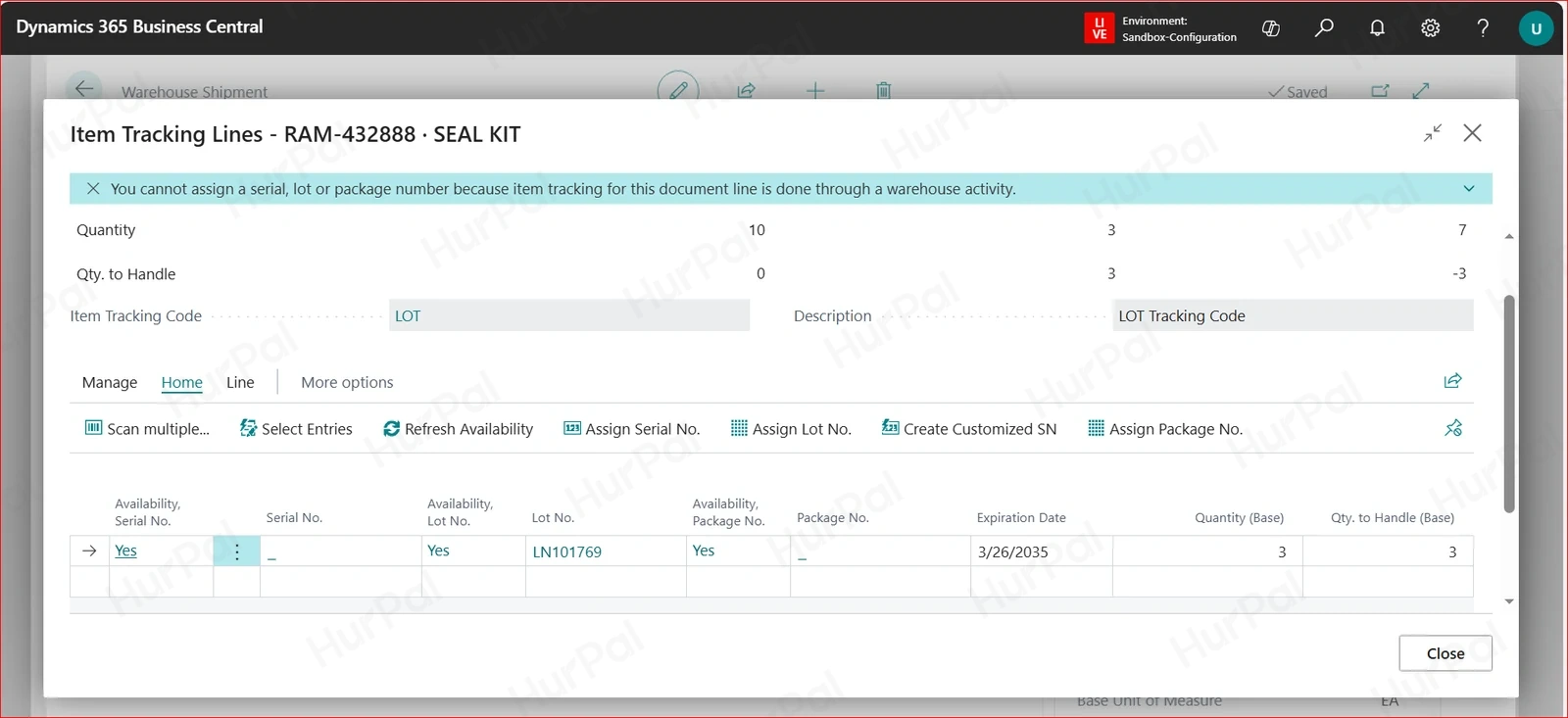
- Check item tracking on the warehouse lines
Item tracking is updated on the warehouse lines automatically.
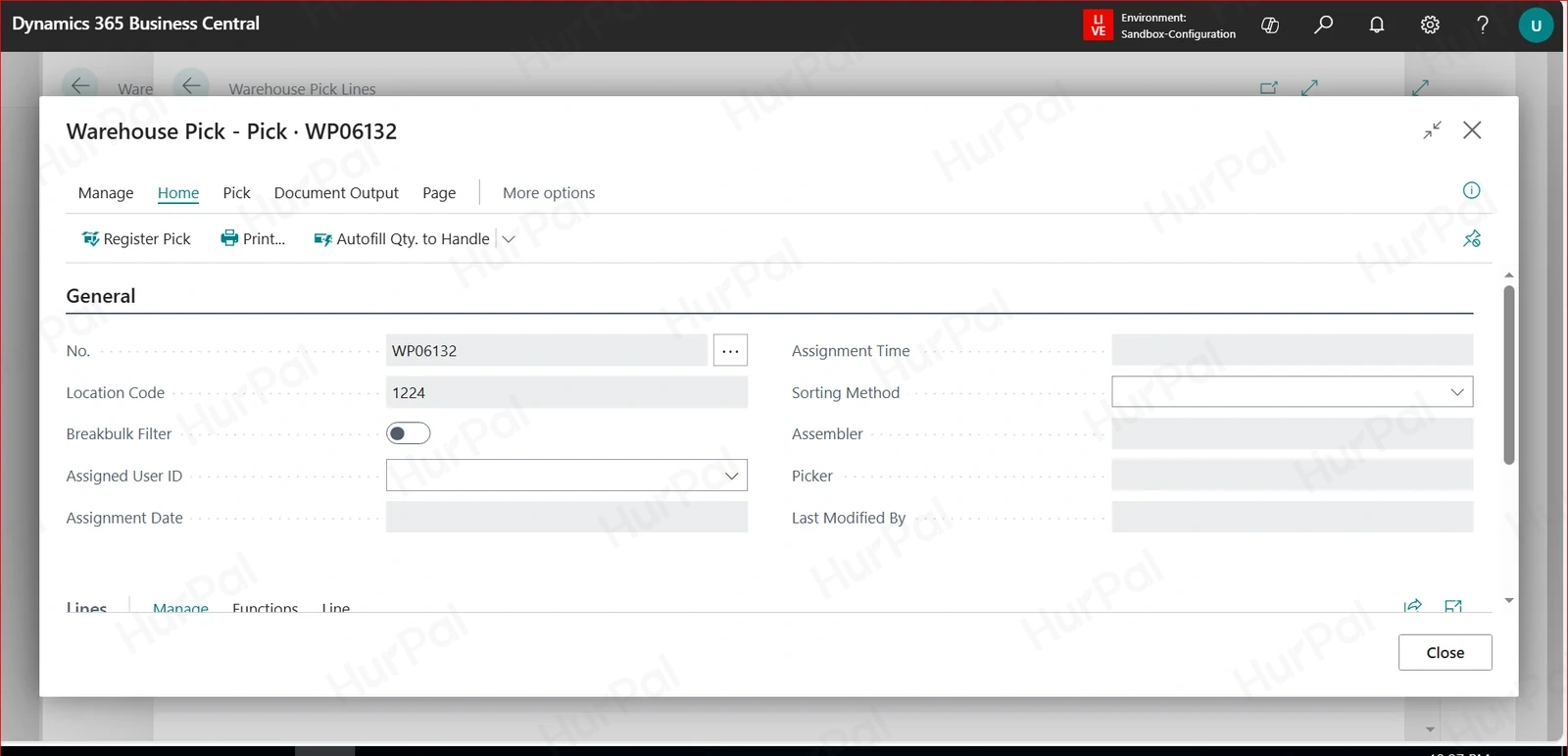
- Register the S-Pick
Open the warehouse pick in Business Central and click Register Pick.
- Post the warehouse shipment
Open the warehouse shipment and post it. The order moves to Shipped.