Undo a registered warehouse or assembly pick
Use this to reverse a pick that was registered by mistake. Business Central adds reversing lines, updates the document status, and FastPack updates the order’s Posted Pick number.
You need access to the registered warehouse pick in Business Central. To undo an assembly pick, you also need access to the registered assembly pick.
Undo a registered warehouse pick
Start from the FastPack portal, or open the registered warehouse pick directly in Business Central and begin at step 2.
-
Open the registered pick from FastPack
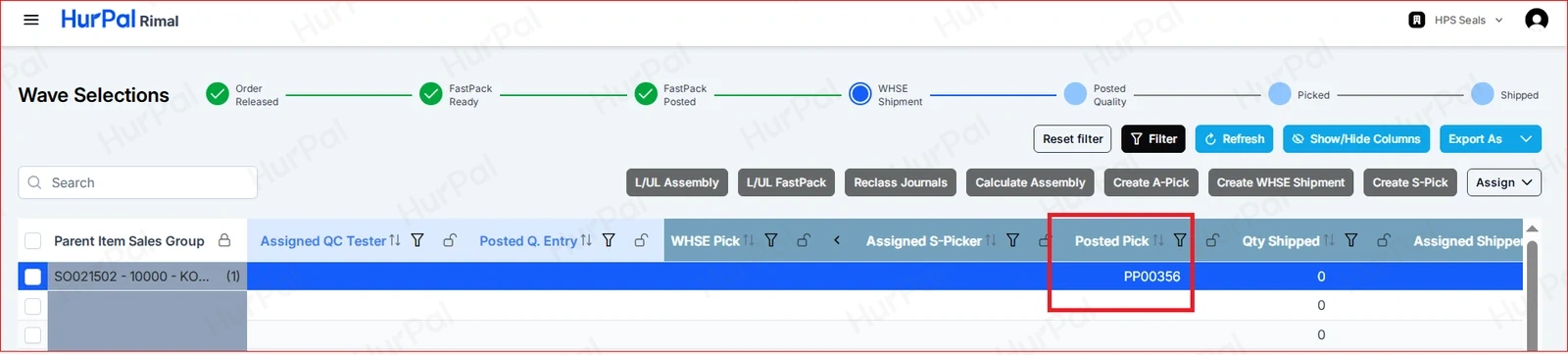
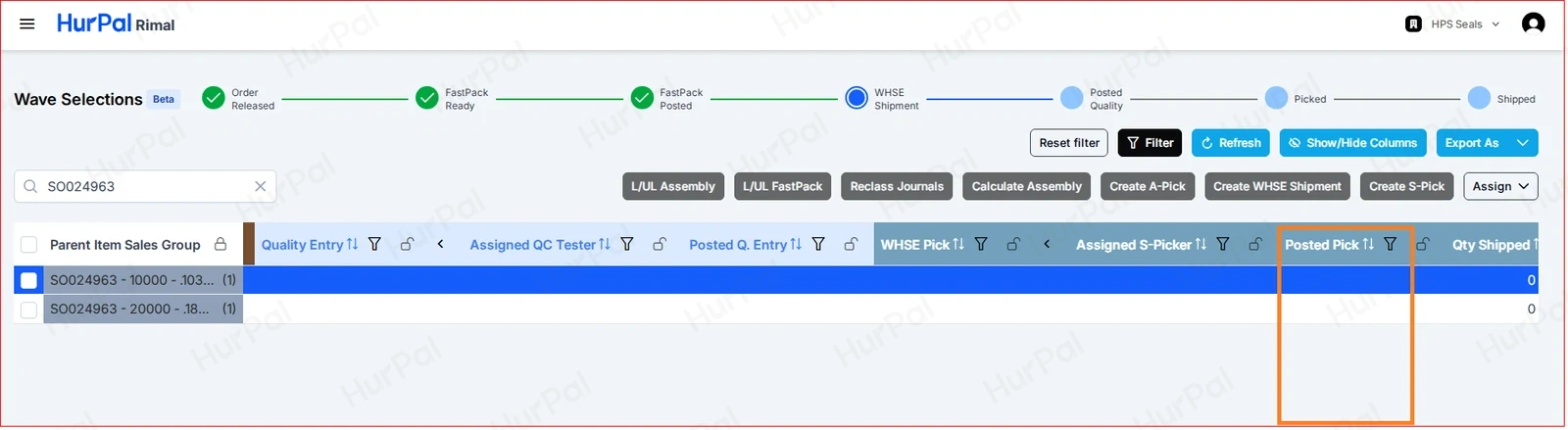
In the FastPack portal, search by sales order number and click the number in the Posted Pick column. The Registered Warehouse Pick page opens in Business Central.
-
Select the lines to undo
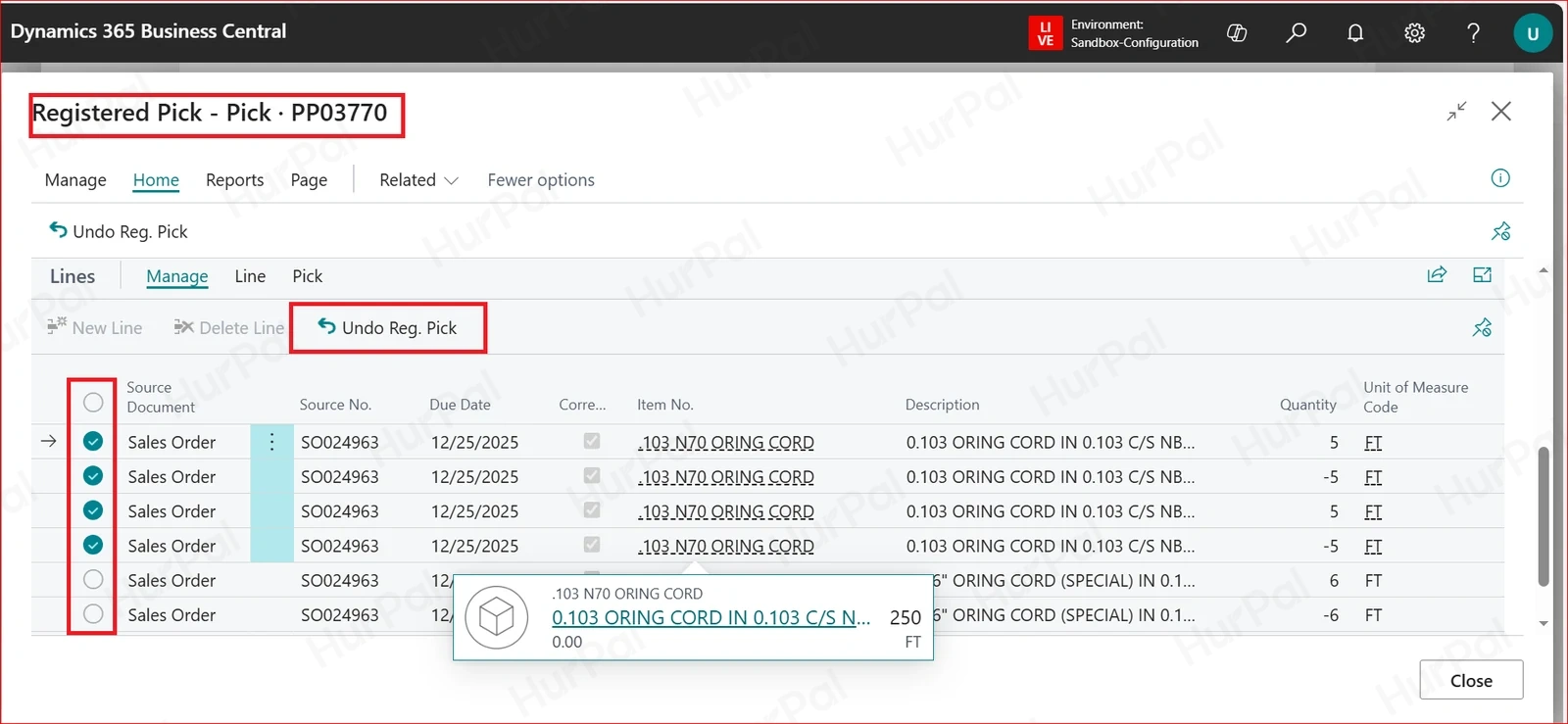
Select the pick line or lines that need to be undone.
-
Click Undo Reg. Pick
Click Undo Reg. Pick on the action bar.
-
Confirm
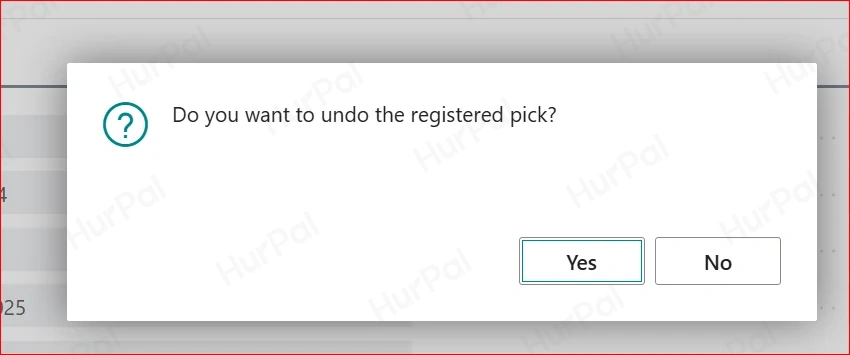
When asked “Do you want to undo the registered pick?”, click Yes.
-
Review the reversing lines
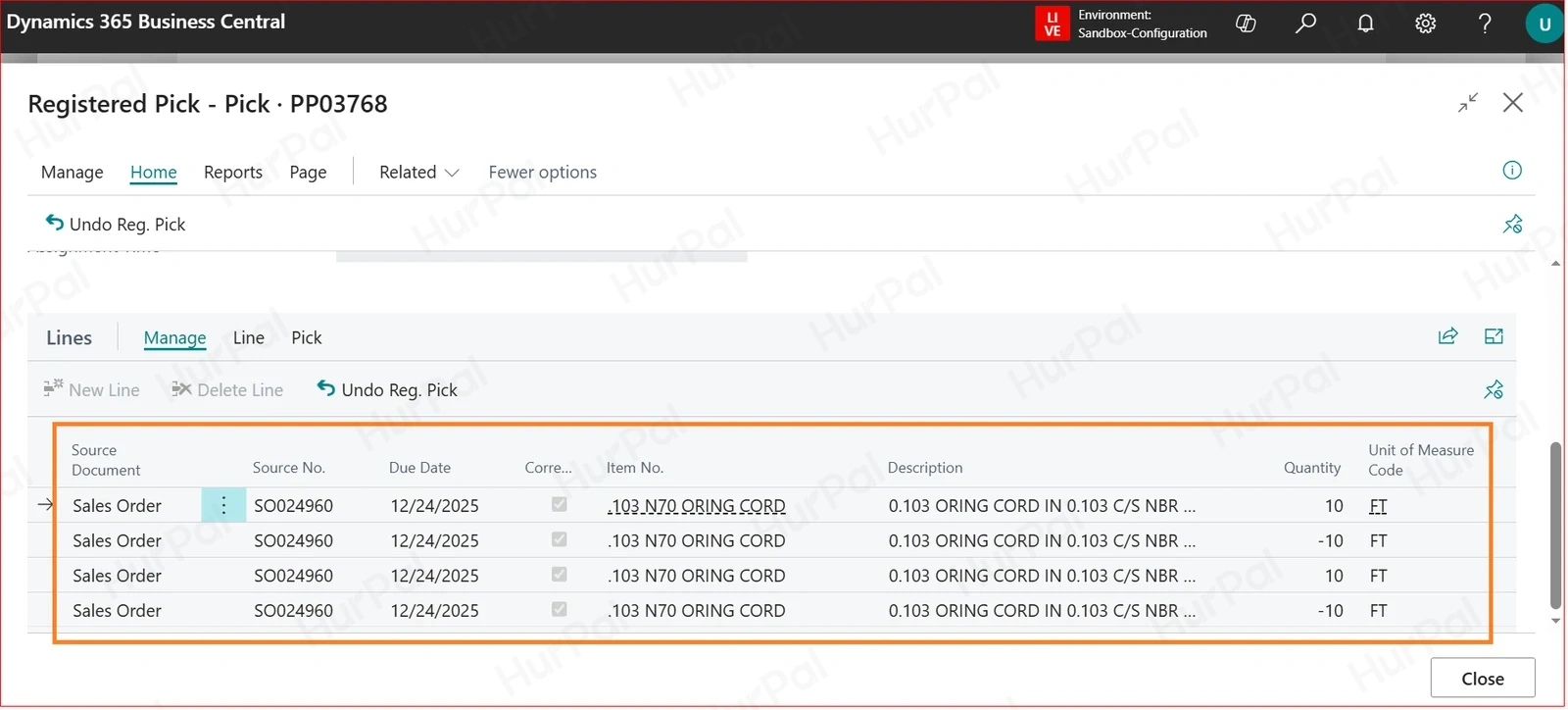
Business Central creates a negative line for each line you undid.
-
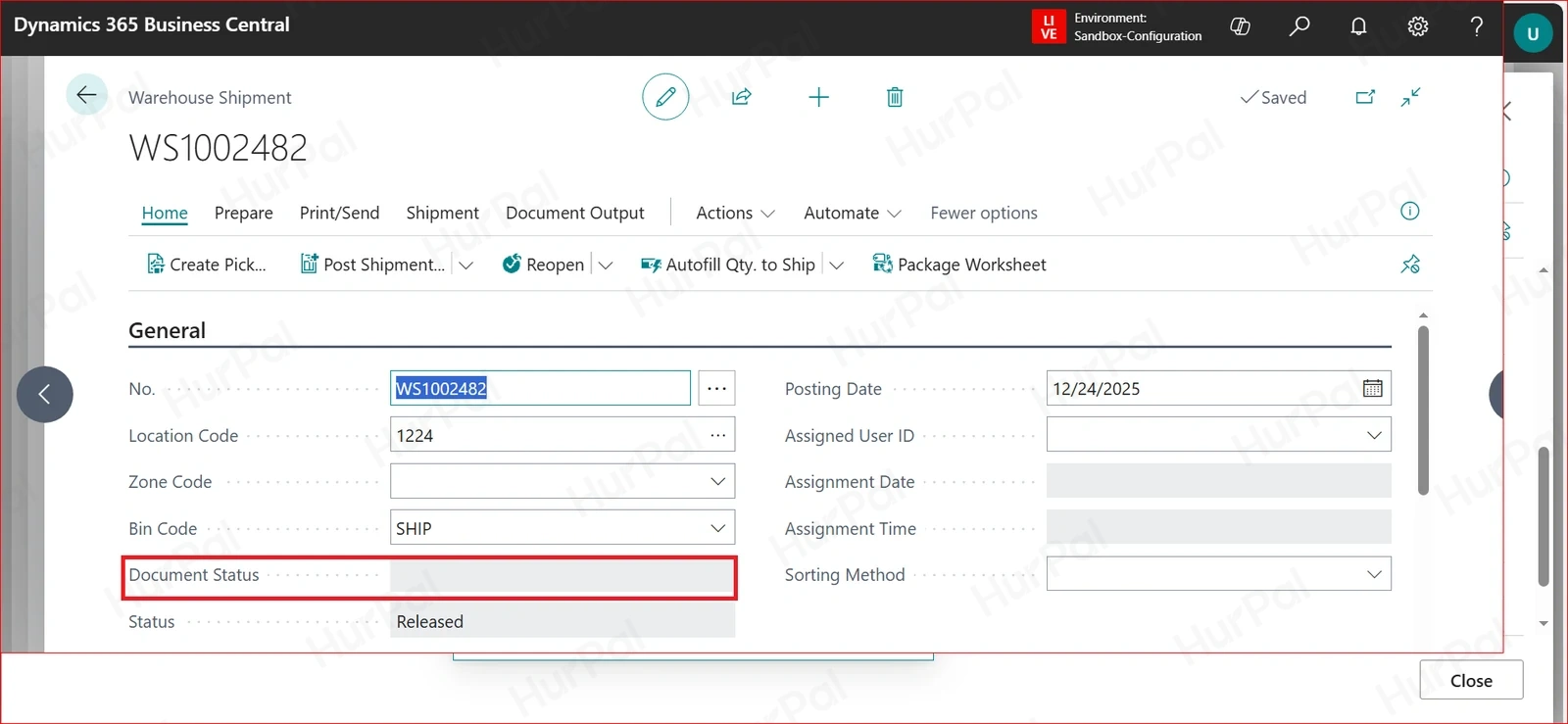
Check the document status
The Document Status on the warehouse shipment is updated automatically.
-
Check FastPack
The Posted Pick number for the order is updated in the FastPack portal.
Undo a registered assembly pick
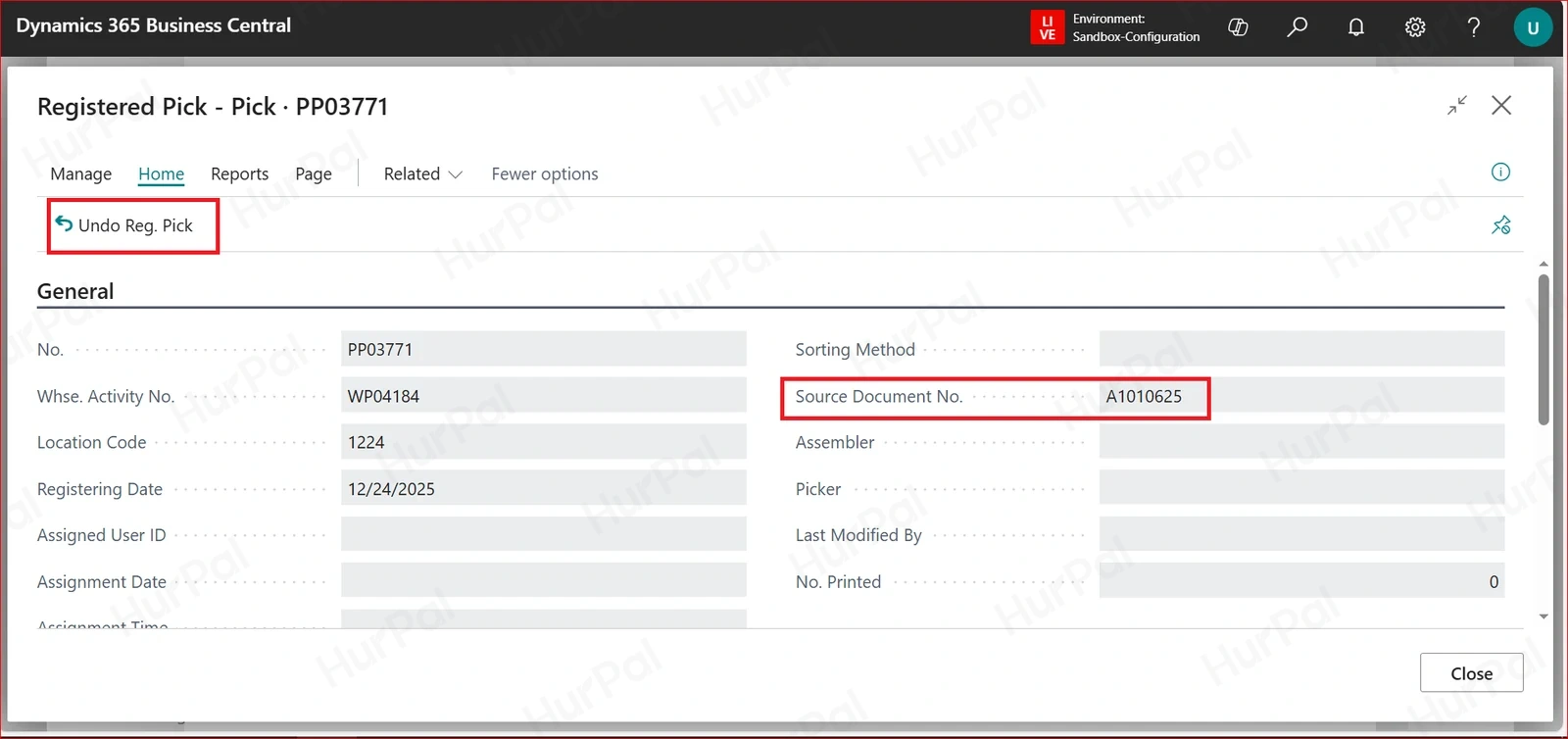
Assembly picks are identified by the assembly order number in Source Document No.
-
Open the registered assembly pick
In Business Central, open the registered pick for the assembly order.
-
Click Undo Reg. Pick
Click Undo Reg. Pick on the action bar.
-
Confirm
When asked to confirm, click Yes.
-
Check the document status
The Document Status is updated automatically.
-
Check item tracking
Item tracking lines, including lot reservations, are updated automatically.
-
Check FastPack
The Posted Pick number for the order is updated in the FastPack portal.