Wave Selections at a glance
Wave Selections is the main working screen in FastPack. Use it to find orders, see what stage they’re at, and run the next warehouse action. Most FastPack guides start here.
In the FastPack portal, go to Portal > Wave Selections (Beta).
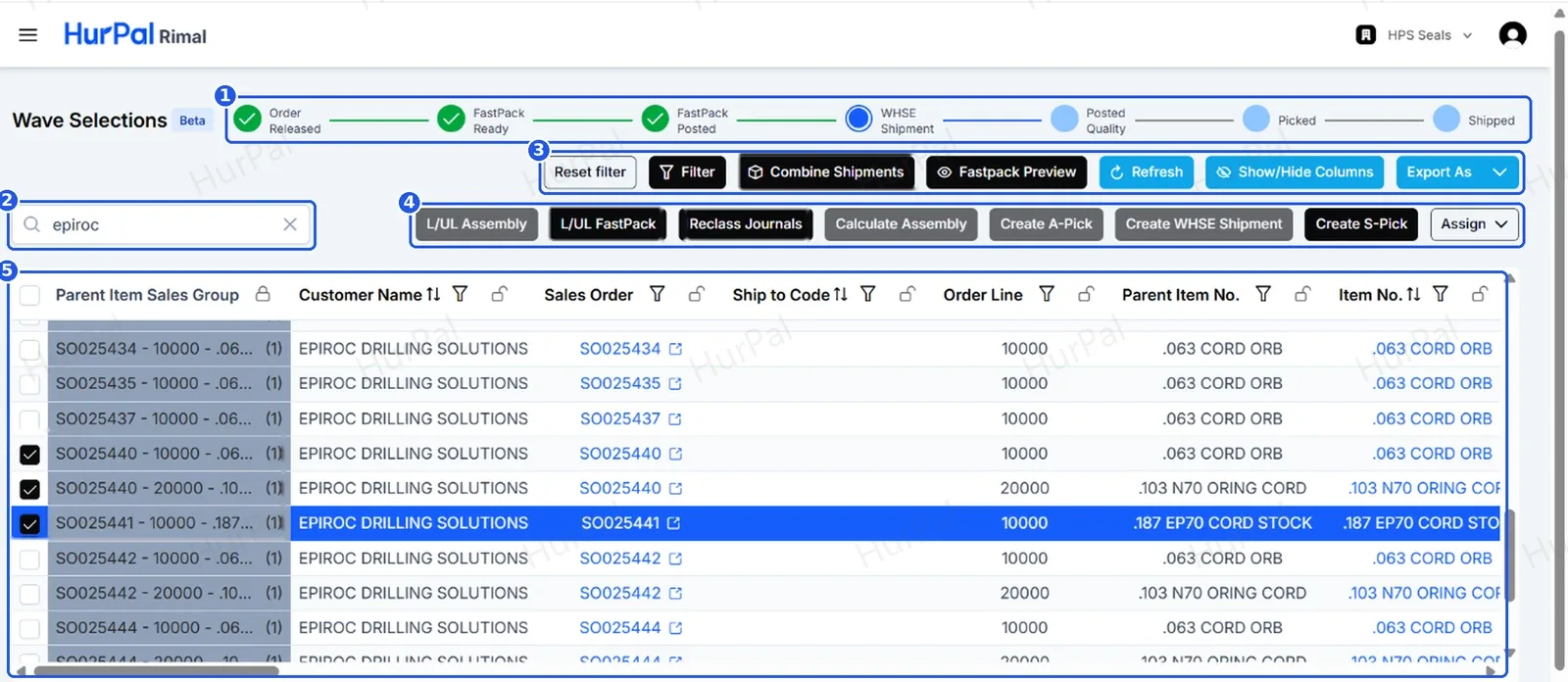
Page layout
The numbers in the screenshot match the list below.
-
Stage tracker
Shows where the orders you’re viewing are in the warehouse flow. Completed stages show a green check, the current stage is outlined in blue, and upcoming stages are shaded. See Order stages.
-
Search
Find orders by sales order number or customer name, for example SO025392 or epiroc. Click × to clear the search.
-
View tools
Filter, refresh and arrange the grid, export it, or combine and preview shipments. See Buttons.
-
Action buttons
Move the selected order lines to the next stage, for example by creating a pick or a warehouse shipment. Buttons that don’t apply to your selection are greyed out.
-
Order lines grid
One row per sales order line, grouped by Parent Item Sales Group. Tick the checkbox on a row to select it before you click an action. See Grid columns.
Order stages
The tracker follows one of two paths, depending on whether the order needs assembly.
Orders with assembly: Order Released → Assembly Ready → Assembly Picked → Assembly Posted → WHSE Shipment → Posted Quality → Picked → Shipped
FastPack orders (no assembly): Order Released → FastPack Ready → FastPack Posted → WHSE Shipment → Posted Quality → Picked → Shipped
| Stage | What happens to move it on | Guide |
|---|---|---|
| Order Released | The sales order is released in Business Central and appears in Wave Selections. | – |
| Assembly Ready | Load the assembly, calculate it, assign an assembler and create the assembly pick (A-Pick). | Assembly |
| Assembly Picked | Register the assembly pick in Business Central. | Assembly |
| Assembly Posted | Assign the lot and post the assembly order. | Assembly |
| FastPack Ready | Load the FastPack and post the reclassification journal. | Combine shipments |
| FastPack Posted | Post the package from the Open FastPack page. | Combine shipments |
| WHSE Shipment | Create the warehouse shipment, or combine orders onto one shipment. | Assembly, Combine shipments |
| Posted Quality | The quality check is completed and posted. | – |
| Picked | Create the shipment pick (S-Pick) and register it in Business Central. | Assembly |
| Shipped | Post the warehouse shipment. | Assembly |
Buttons
Action buttons
| Button | What it does |
|---|---|
| L/UL Assembly | Opens the Open Assemblies page for the selected order, where you calculate the assembly, assign the assembler and create the assembly pick. |
| L/UL FastPack | Opens the Open FastPack page for the selected order, where you post the package. |
| Reclass Journals | Opens the reclassification journal for the selected lines. |
| Calculate Assembly | Calculates the quantity to assemble for the selected lines. |
| Create A-Pick | Creates the assembly pick for the components. |
| Create WHSE Shipment | Creates the warehouse shipment in Business Central. |
| Create S-Pick | Creates the shipment pick for the warehouse shipment. |
| Assign | Assigns team members to the selected lines. Assignments show in columns such as Assigned S-Picker and Assigned QC Tester. |
View tools
| Button | What it does |
|---|---|
| Combine Shipments | Puts the selected sales orders on a single warehouse shipment. See Combine sales orders into one shipment. |
| FastPack Preview | Shows a preview of the FastPack for the selected lines. |
| Filter | Filters the grid. You can also filter a single column with the funnel icon in its header. |
| Reset filter | Clears all filters. |
| Refresh | Reloads the grid. Use it after you register or post something in Business Central. |
| Show/Hide Columns | Chooses which columns appear in the grid. |
| Export As | Exports the grid to a file. |
Grid columns
Sort a column with the arrows in its header and filter it with the funnel icon. Blue values are links that open the record in Business Central, such as the sales order, warehouse shipment or posted pick.
| Column | Shows |
|---|---|
| Parent Item Sales Group | The sales order, line and parent item the row belongs to. The number in brackets is how many lines are in the group. |
| Customer Name, Ship to Code | Who the order is for and where it ships. |
| Sales Order, Order Line | The sales order number (links to Business Central) and line number. |
| Parent Item No., Item No. | The finished item and the item on the line. |
| Order Qty, Qty Shipped | Quantity ordered and quantity shipped so far. |
| Combine WS | Whether the line is part of a combined warehouse shipment. |
| Posted Assembly Order | The posted assembly order for the line, if any. |
| WHSE Shipment | The warehouse shipment number. Combined orders share one number. |
| WHSE Pick, Assigned S-Picker | The open shipment pick and who it’s assigned to. |
| Posted Pick | The registered pick number. Click it to open the registered pick in Business Central. |
| Quality Entry, Assigned QC Tester, Posted Q. Entry | The quality check for the line, who it’s assigned to, and the posted entry once it’s done. |
Working on the page
-
Find the order
Search by sales order number or customer name.
-
Select the lines
Tick the checkbox on each line you want to work on.
-
Run the action
Click the action button for the next stage.
-
Refresh and check
After finishing any steps in Business Central, click Refresh and confirm the stage tracker and grid columns have updated.