Project detail
The project detail page shows the full profile of a single project. You open it by clicking a project in the projects list. The page holds project information, links to the records the project came from, and an area for managing tasks and timesheets.
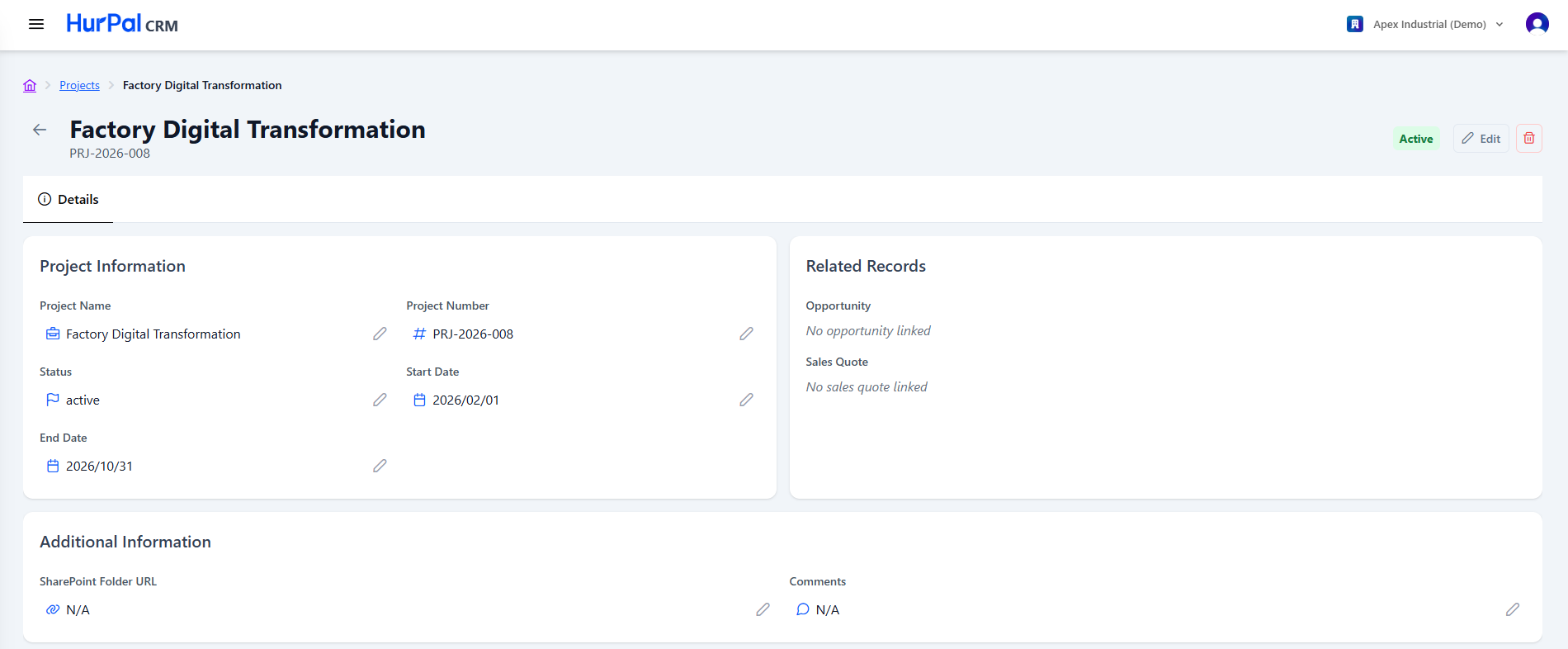
Header
| Element | Description |
|---|---|
| Back arrow | Returns to the projects list. |
| Project Name and Number | The project name with its project number underneath. |
| Status badge | The project's current status, for example Active. |
| Edit | Opens the project in edit mode. |
| Delete (trash) | Deletes the project. |
Project information
Editable fields: Project Name, Project Number, Status, Start Date, and End Date.
Related records
Read-only links to the records the project originated from:
- Opportunity: the deal the project was created from.
- Sales Quote: the quote linked to the project.
Additional information
Editable fields:
- SharePoint Folder URL: a link to the external project files.
- Comments
Activity and dates
A footer panel shows the record history: Created Date, Modified Date, and Created By.
Project tasks and timesheets
This area manages the execution of the project. It has its own set of tabs:
- Tasks Lines: the default view, listing the project's tasks.
- Timesheets: time logged against the project.
- Material Entries: materials used or allocated to the project.
- Material Fulfillments: tracking of material fulfillment against entries.
Use Add Task to create a task line.
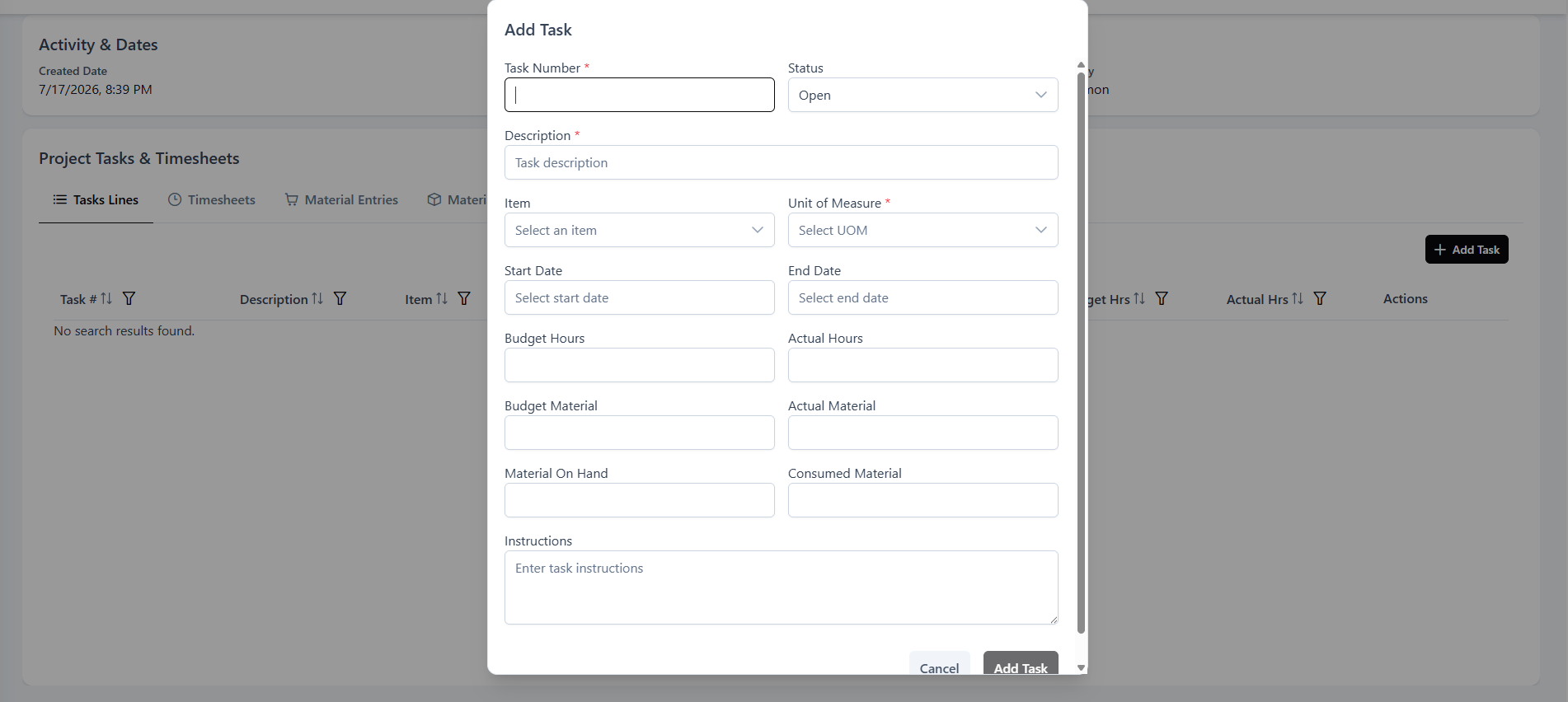
Tasks Lines table
| Column | Description |
|---|---|
| Task # | The task sequence number. |
| Description | A description of the task. |
| Item | The related item, if any. |
| UOM | The unit of measure, for example kg. |
| Status | The task status, for example Open. |
| Start Date and End Date | The scheduled dates for the task. |
| Budget Hrs and Actual Hrs | The budgeted hours compared with the actual hours spent. |
| Actions | Edit (pencil) and delete (trash). |