Projects list
The Projects screen lists every project in the CRM. A project is typically created once a deal is won, to plan and deliver the work. This screen follows the same layout as the other list screens.
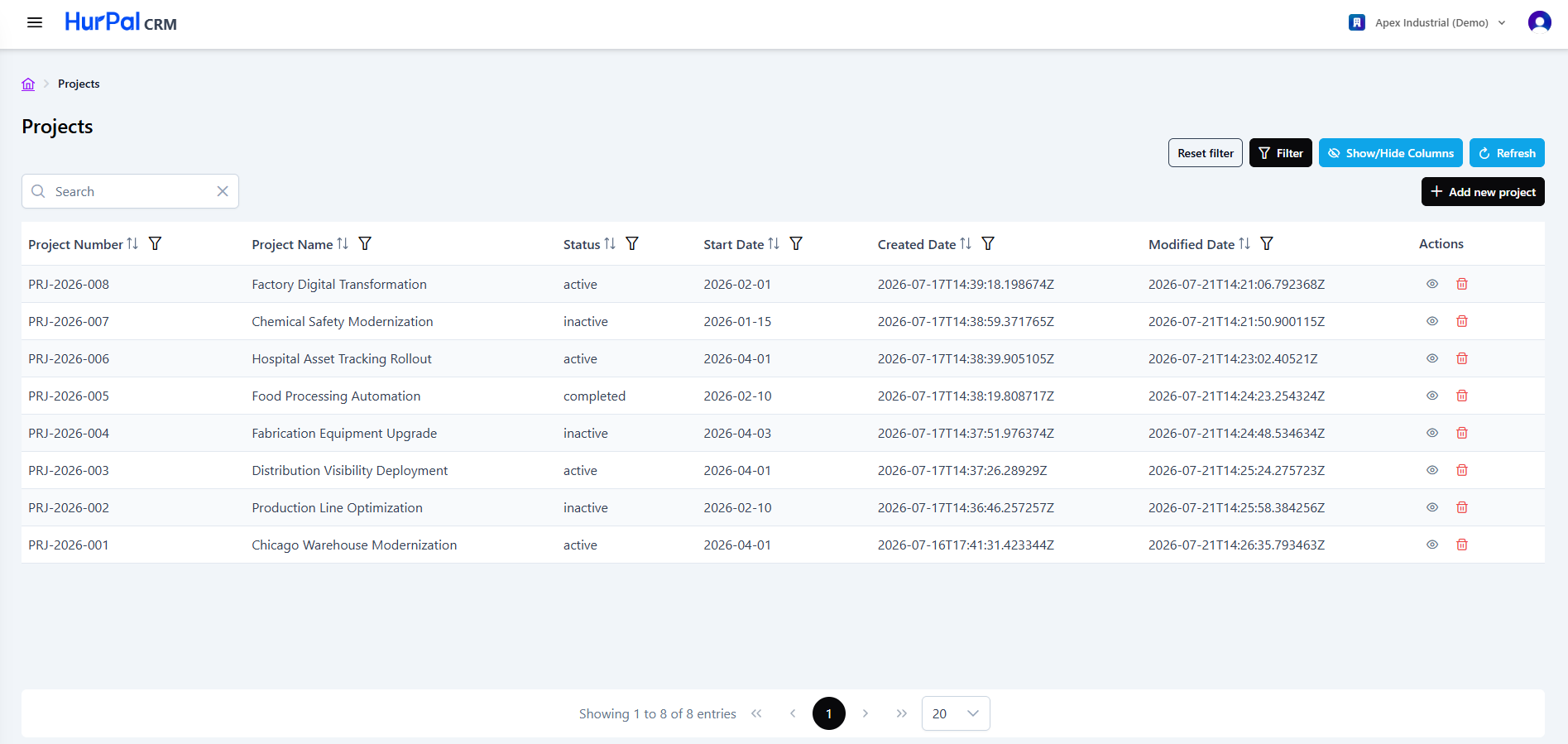
Toolbar
| Control | What it does |
|---|---|
| Search | Free-text search to find projects. |
| Reset filter | Clears all applied filters. |
| Filter | Opens the advanced filtering options for the list. |
| Show or hide columns | Chooses which columns are visible in the table. |
| Refresh | Reloads the list with the latest data. |
| Add new project | Opens a form to create a project manually. |
Projects table
The table lists projects across the columns below. Most columns can be sorted and filtered.
| Column | Description |
|---|---|
| Project Number | The unique identifier for the project, for example PRJ-2026-008. |
| Project Name | The descriptive name of the project. |
| Status | The project's current stage, for example active or inactive. |
| Start Date | The project start date. |
| End Date | The project end date. |
| Created Date | When the project record was created. |
| Modified Date | When the project record was last updated. |
| Actions | Row actions: view (eye) and delete (trash). |
Pagination
Below the table:
- A summary shows the current range and total record count, for example "Showing 1 to 8 of 8 entries".
- Page controls (first, previous, numbered pages, next, last) move through the results.
- A page-size selector controls how many rows appear per page.
Adding a project
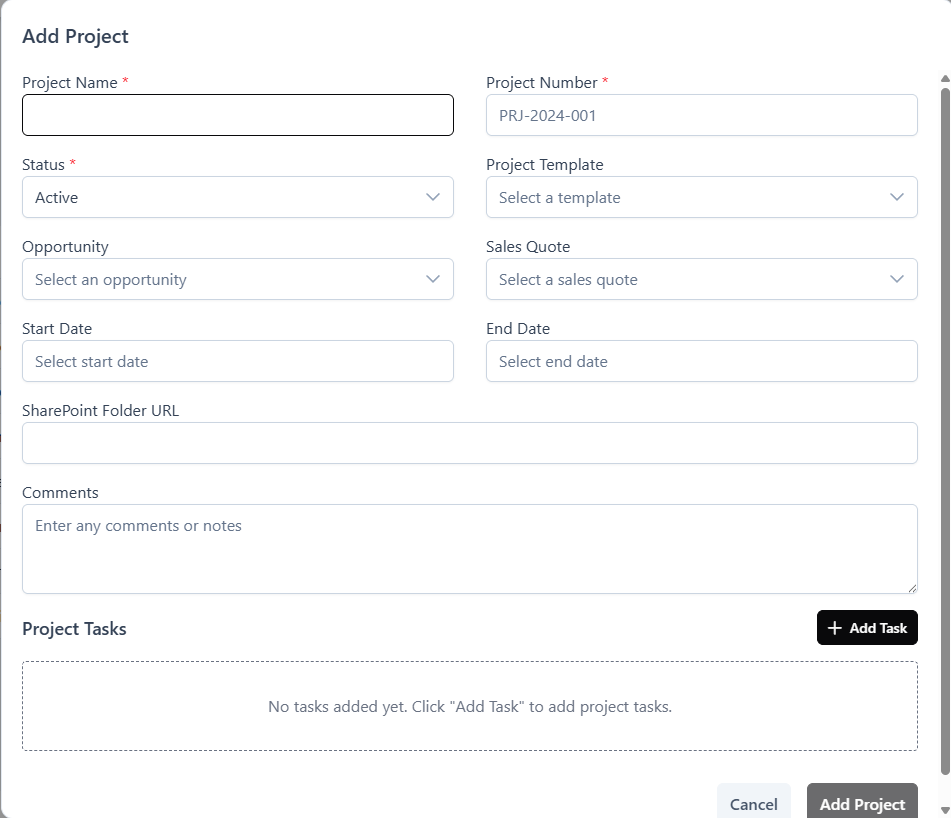
Click Add new project and complete the form. A project name, number, and status are required. You can also link an opportunity and sales quote, set a project template, choose start and end dates, and add project tasks.
Next steps
Open a project to manage its information, related records, and tasks on the project detail page.