Create and invite a customer
Use this to bring a new customer into Reem. You’ll create them in Business Central, invite them to the portal, and they’ll complete their profile.
You need access to Business Central and to the HurPal Reem portal.
Part 1: Create the customer
Create the customer in Business Central and check they appear in Reem.
-
Open the Reem portal
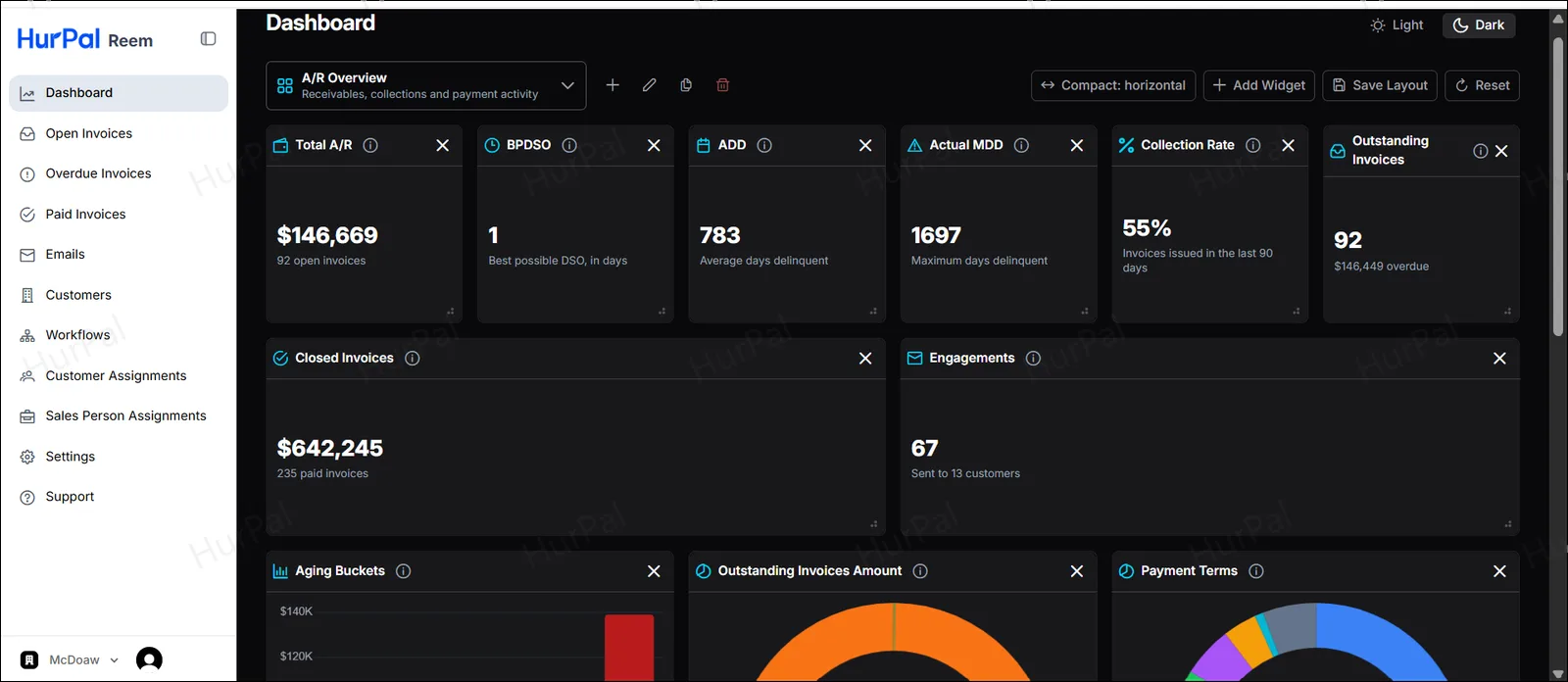
Open the HurPal Reem portal in a web browser. The dashboard shows analytics and other receivables information.
-
Create the customer in Business Central
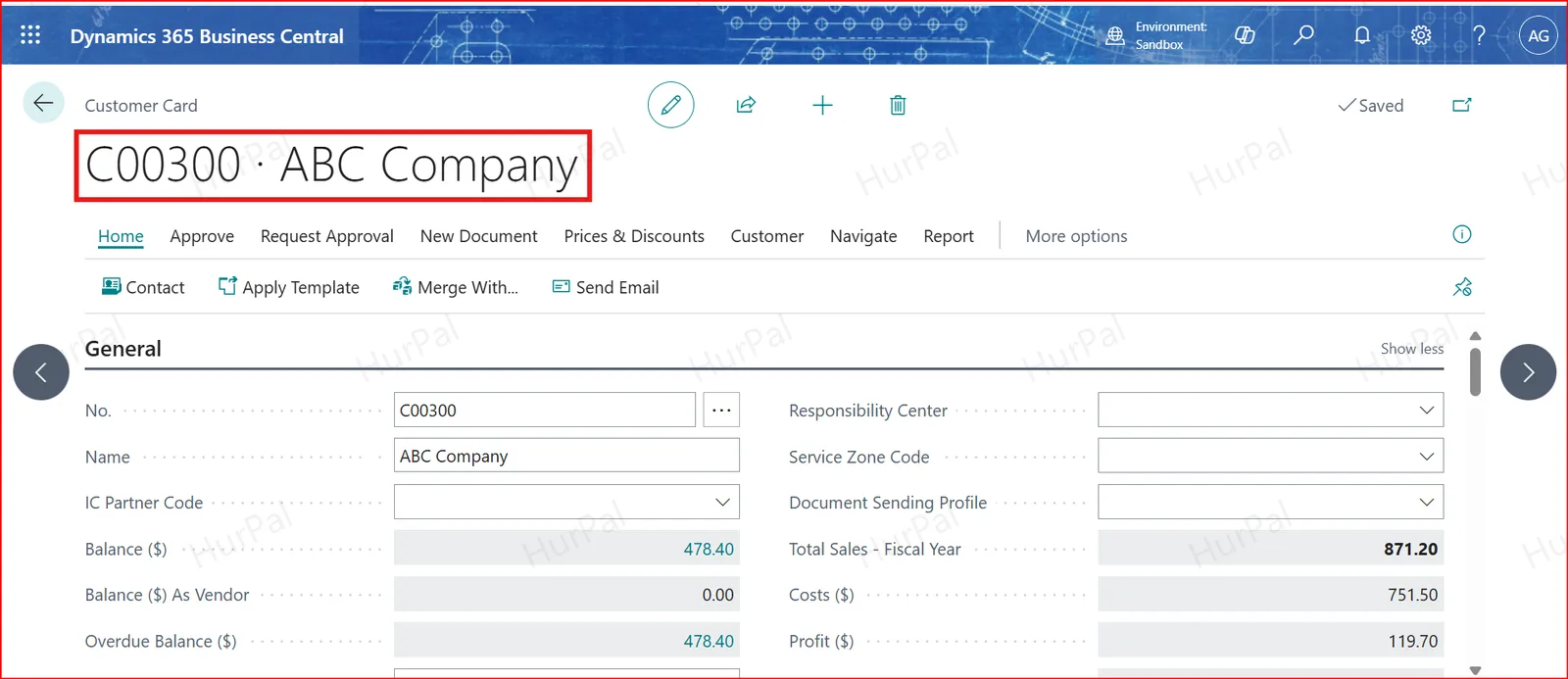
In Business Central (BC), create a new customer.
-
Check the customer in Reem
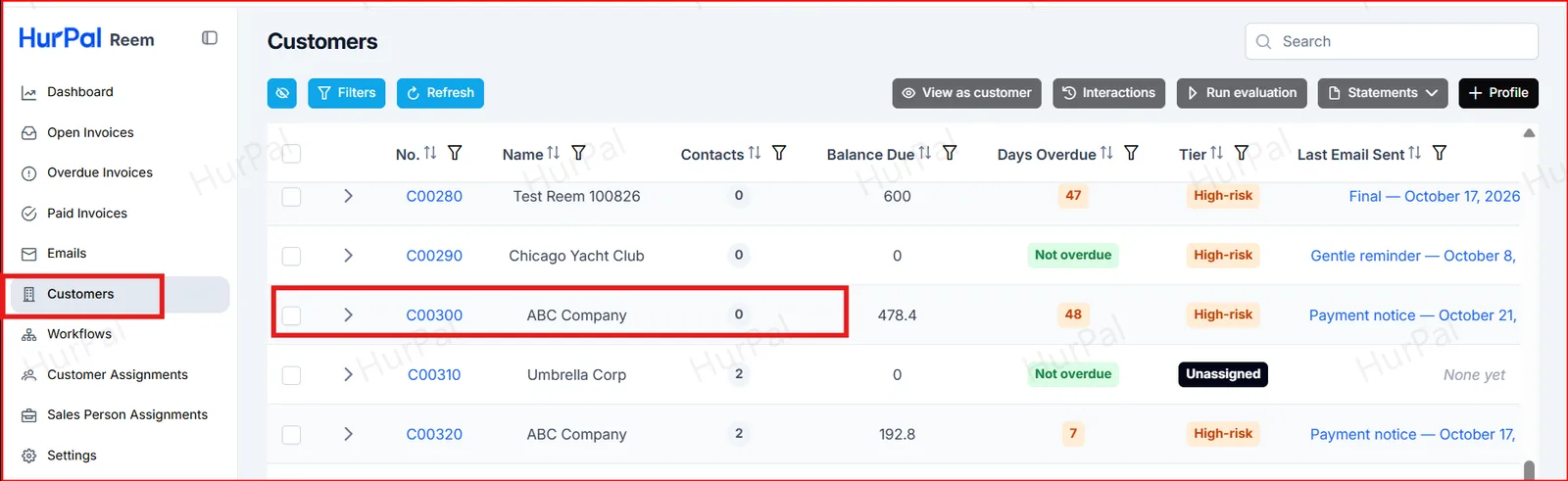
In the Reem portal, open Customers and confirm the new customer is listed.
Part 2: Invite the customer
Send the invitation and have the customer complete their profile.
-
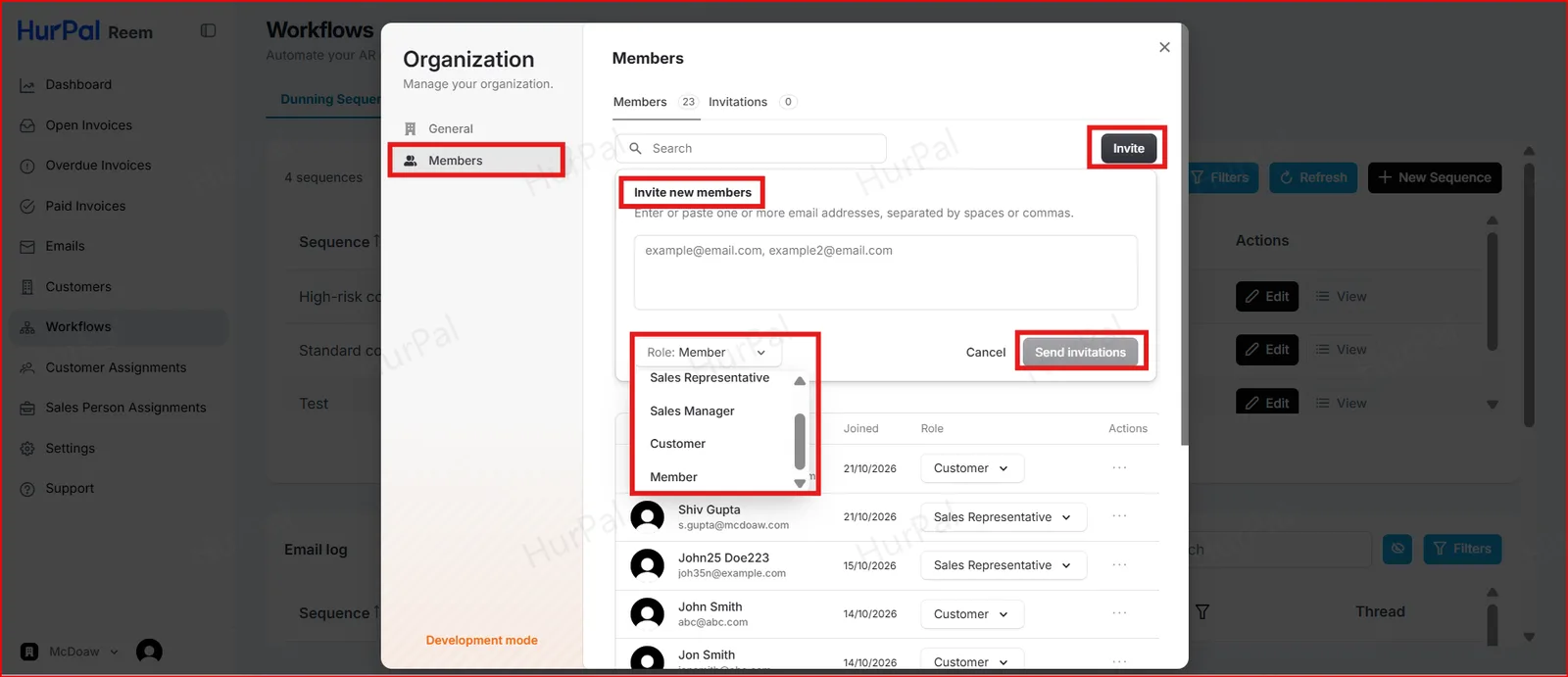
Send the invitation
From the portal, send an invitation to the customer.
-
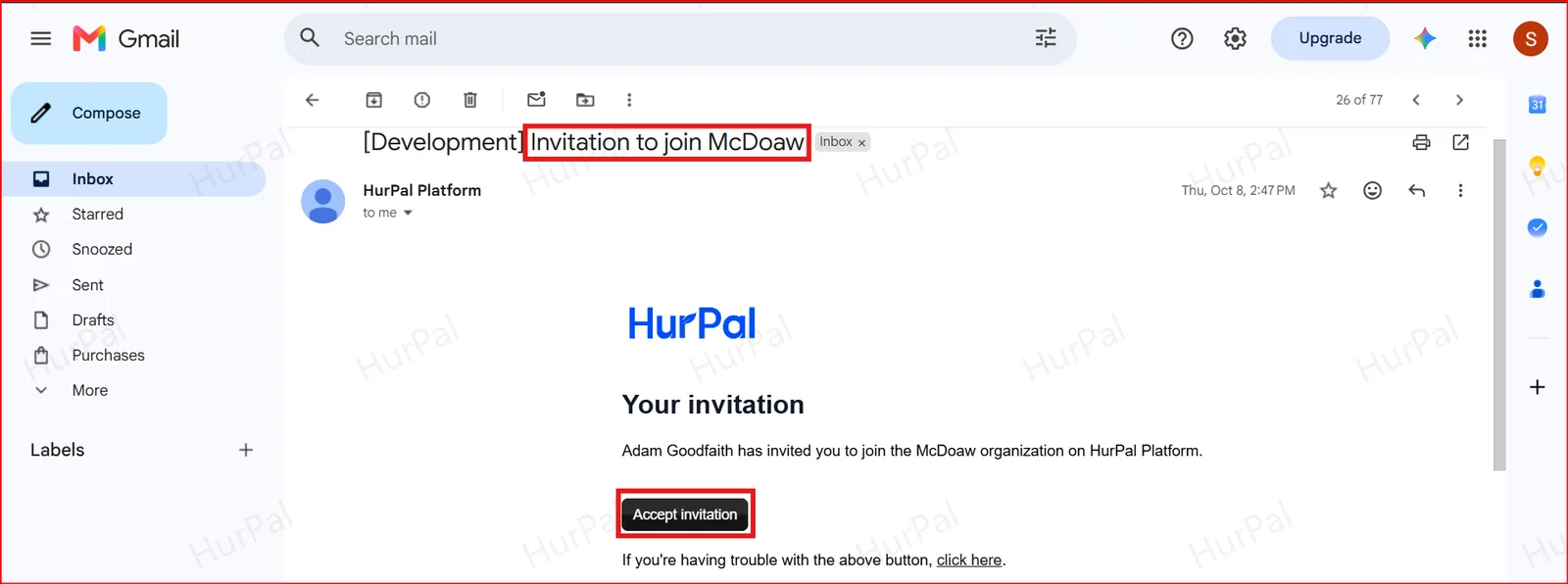
Customer accepts the invitation
The customer receives an invitation email in their inbox and must click Accept Invitation to continue.
-
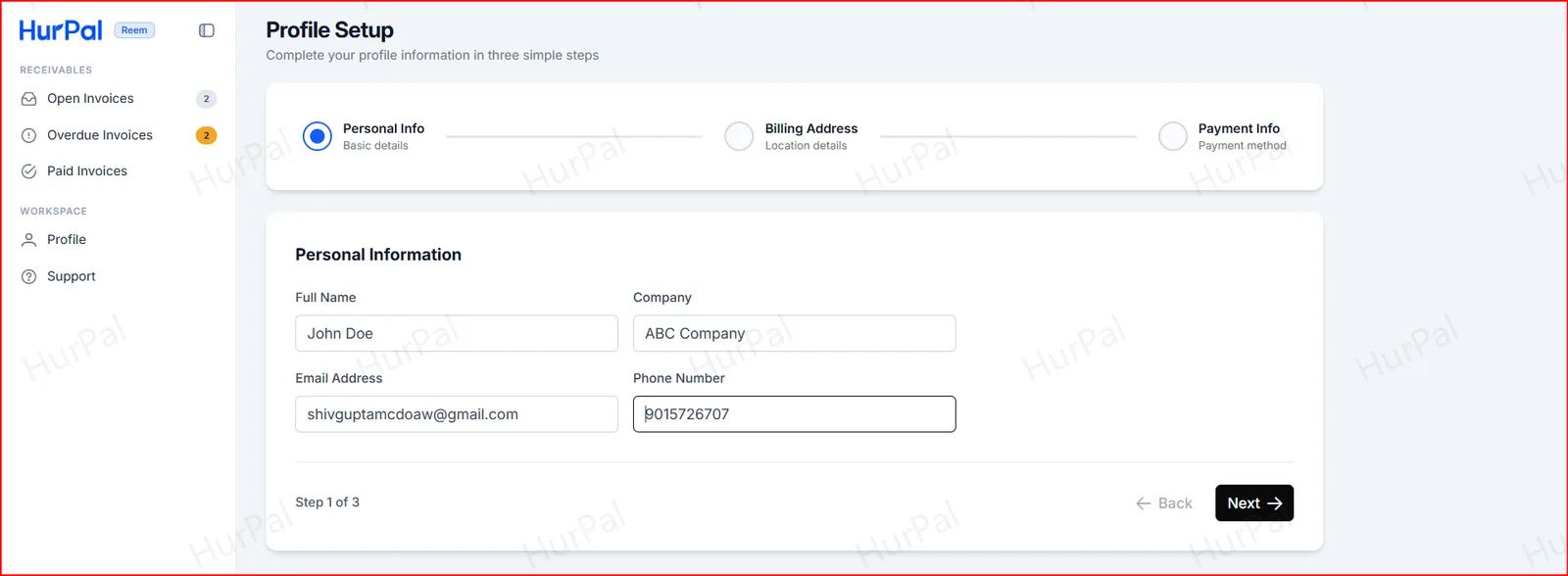
Customer enters personal information
A new Profile Setup page opens. In step 1, the customer enters their name, company, email address and phone number, then clicks Next.
-
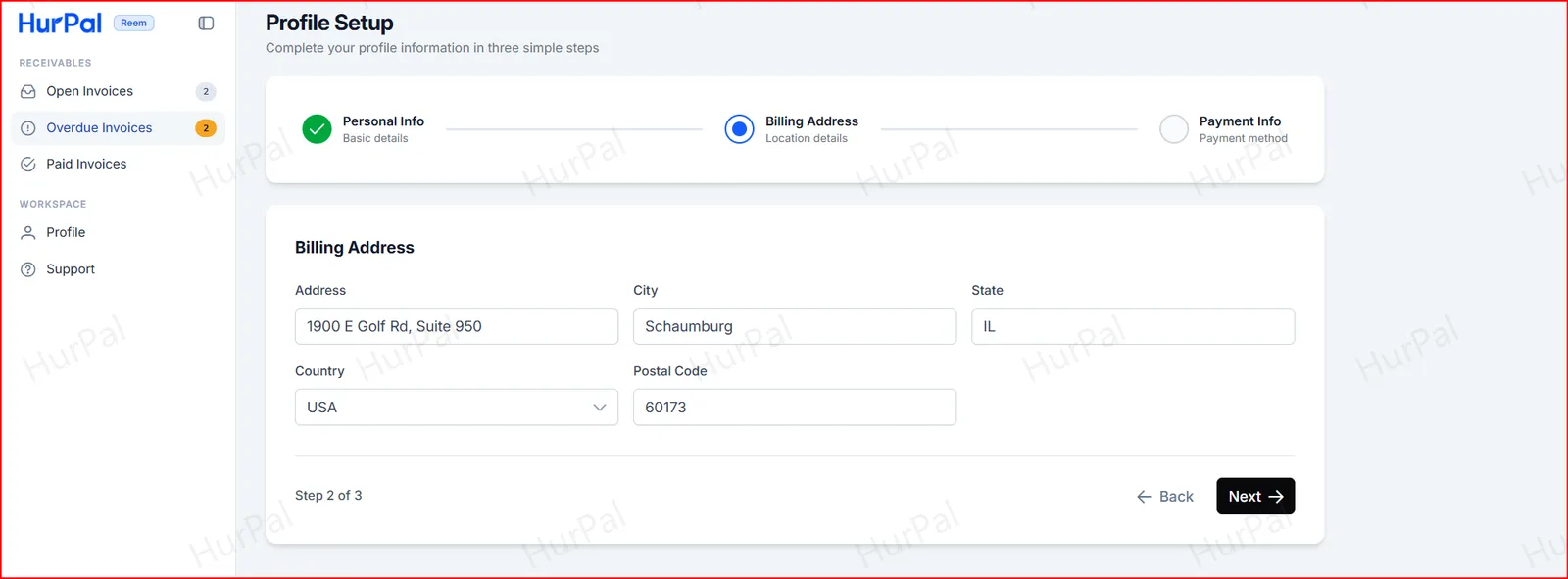
Customer enters the billing address
In step 2, the customer enters their billing address, then clicks Next.
-
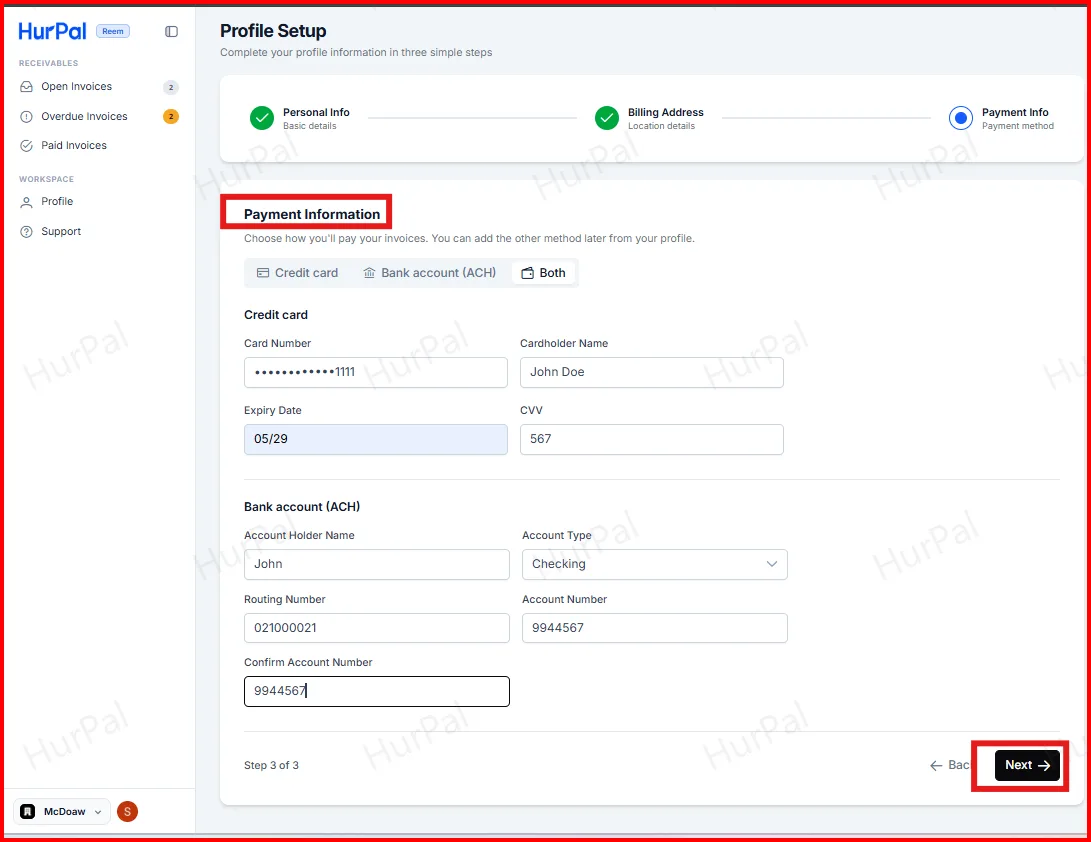
Customer enters payment information
In step 3, the customer chooses Credit card, Bank account (ACH), or Both, enters the details, then clicks Next.
-
Check the profile
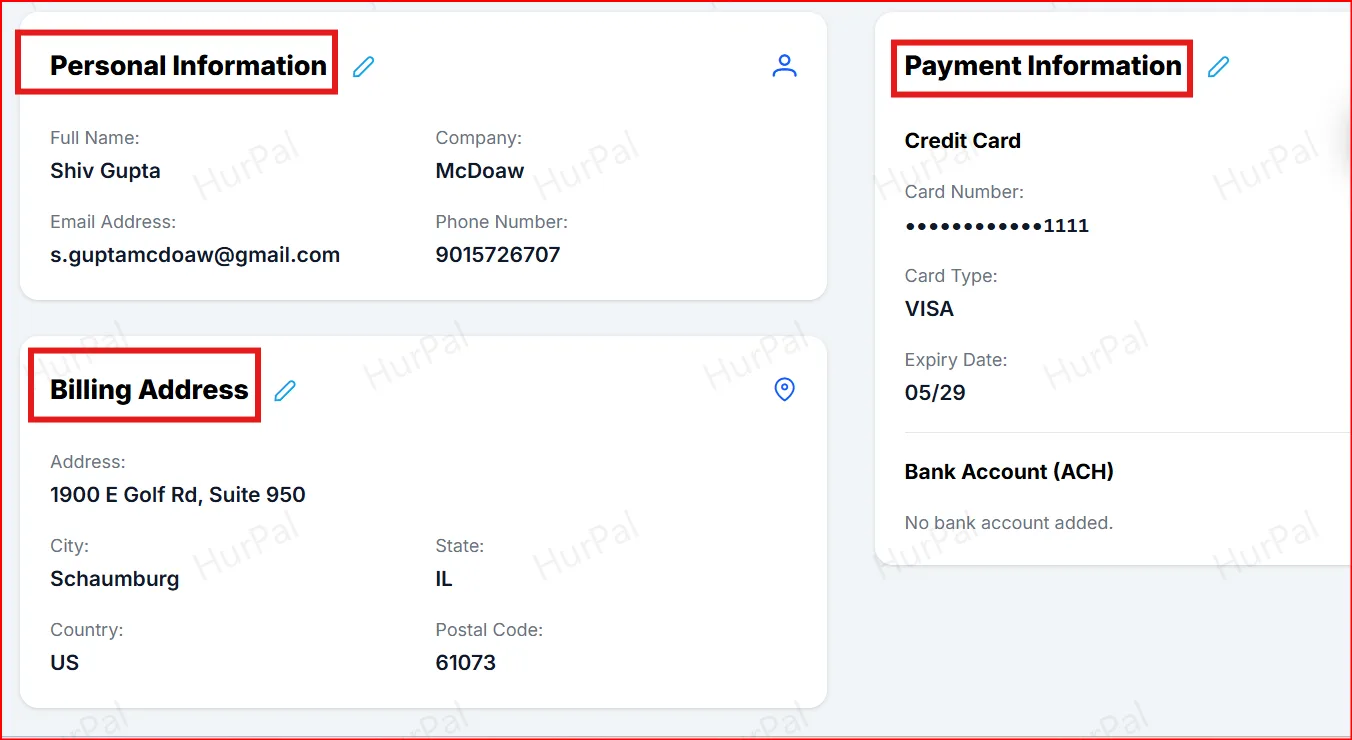
The customer’s Profile page shows their personal, billing and payment information. They can edit any section from here.