Configure payment notifications and statements
Use this to set what customers receive and when. You’ll write the email templates, send a payment notice and a statement, check what was sent, and schedule both to run automatically.
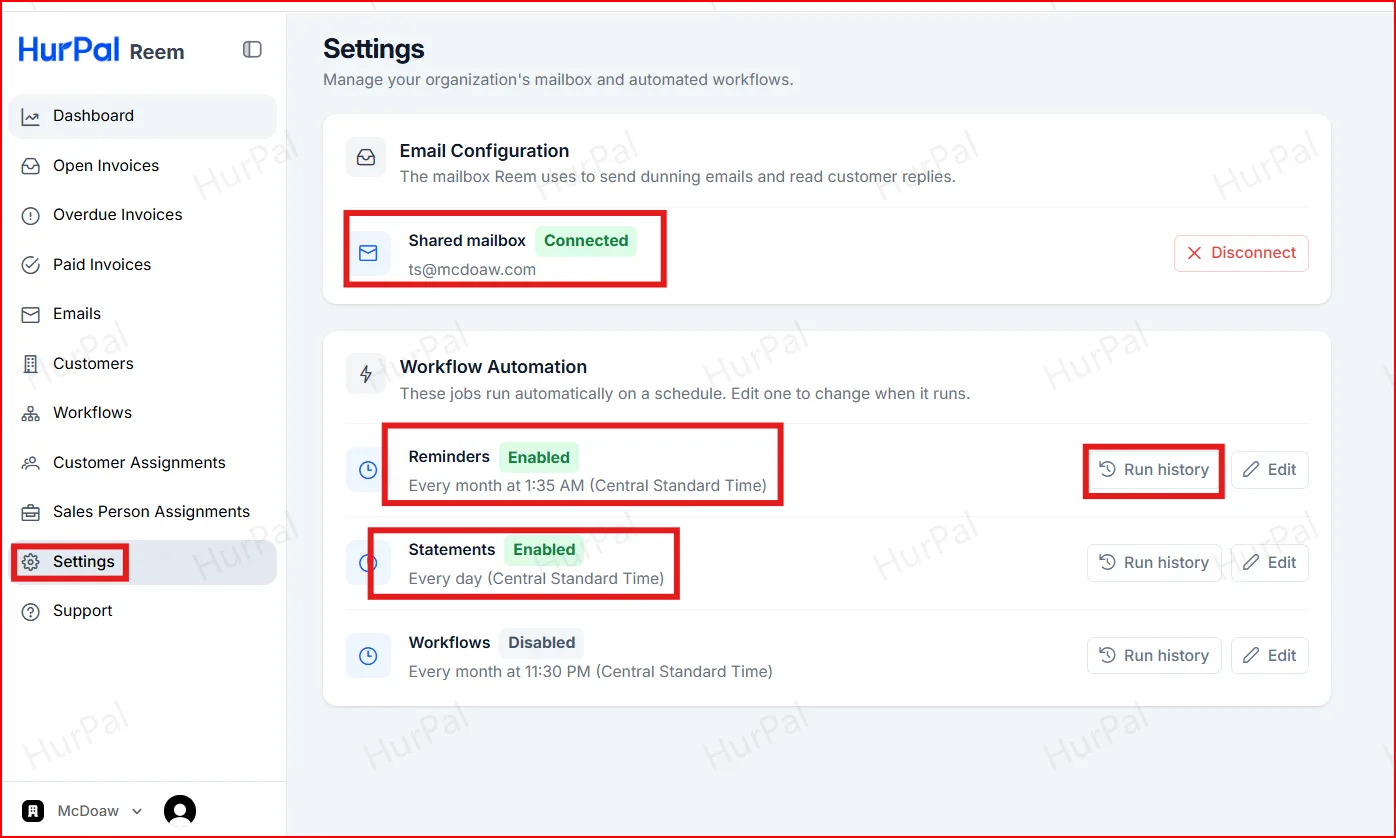
The customer needs a workflow assigned. See Assign a customer and set up their workflow. A shared mailbox must also be connected under Settings.
Part 1: Set up the email
-
Open the stage content
In Workflows, open the sequence and click Configure on the stage you want to change.
-
Set the subject and body
Edit the Subject and Body of the email. Use the properties on the left, such as
InvoiceNumber,CustomerName,AmountDue,DueDateandCompanyName, to insert details automatically. Click Save when done.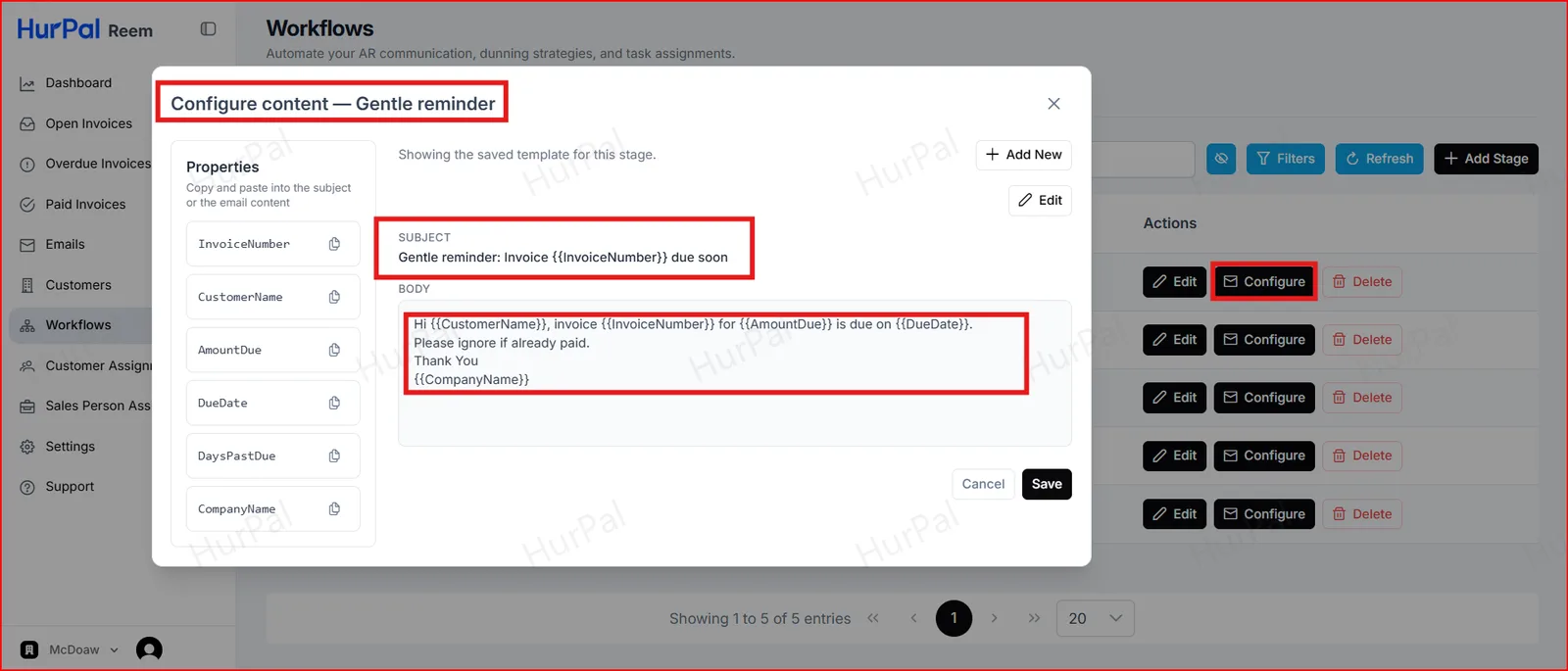
Part 2: Send a payment notice and statement
-
Send the payment notification
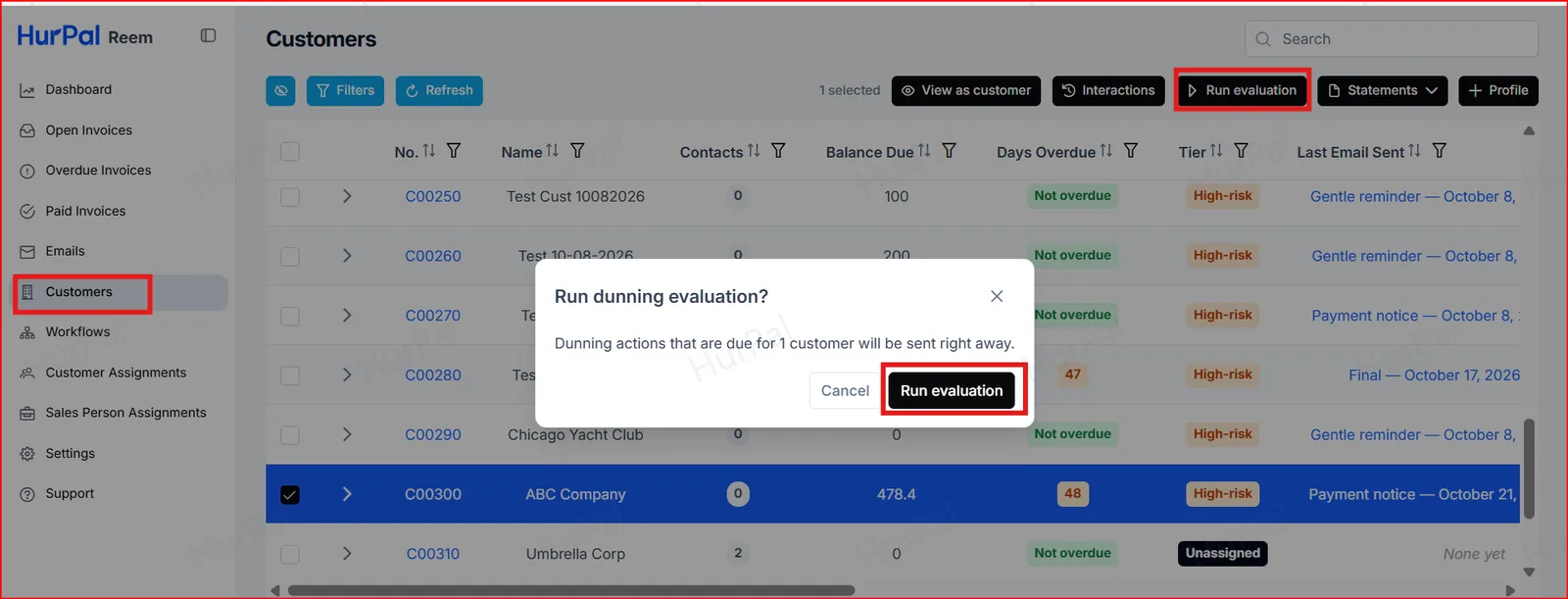
Open Customers, select the customer and click Run evaluation. Click Run evaluation again to confirm. Any dunning actions that are due are sent right away.
-
Send or view the statement
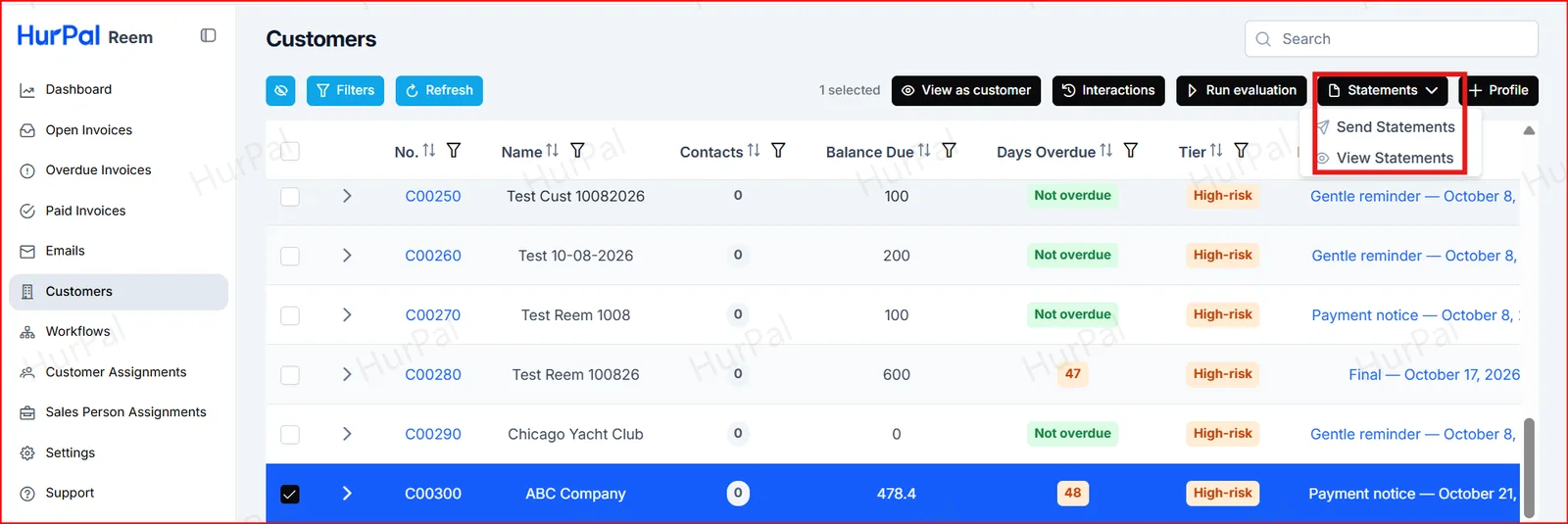
With the customer selected, click Statements, then choose Send Statements or View Statements.
-
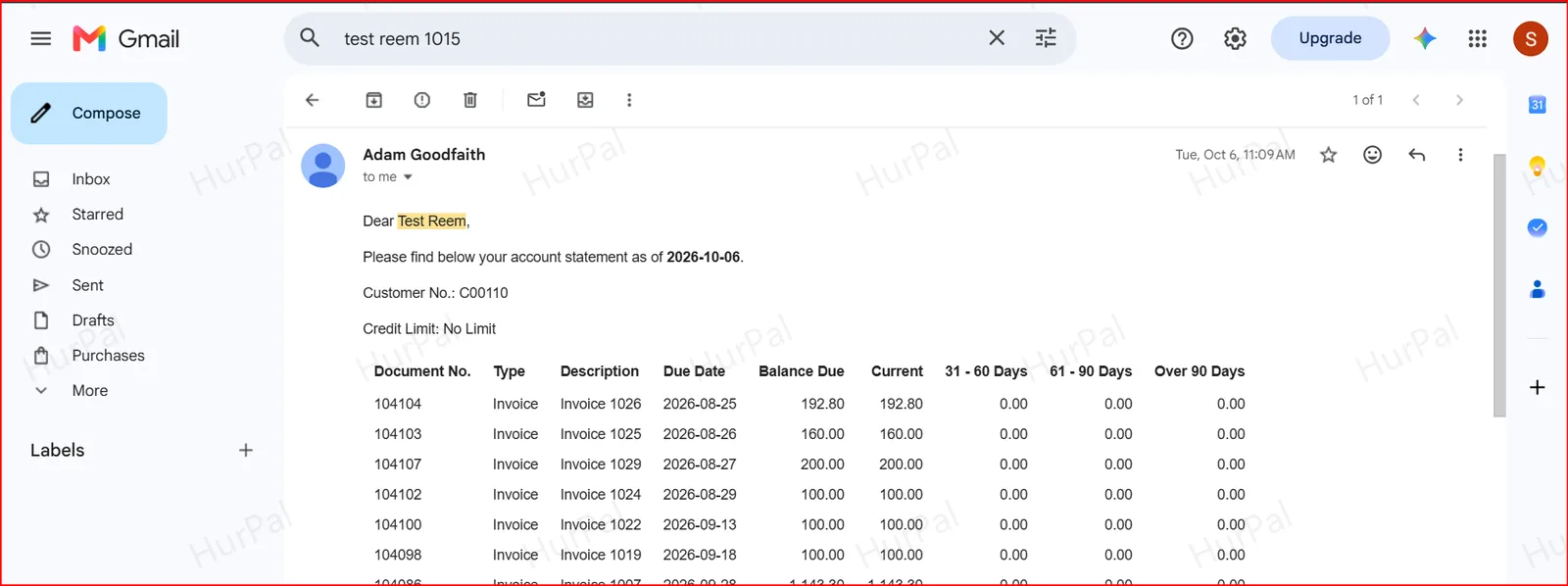
Check the customer’s email
The customer receives the statement by email, showing each open invoice, its due date and balance.
-
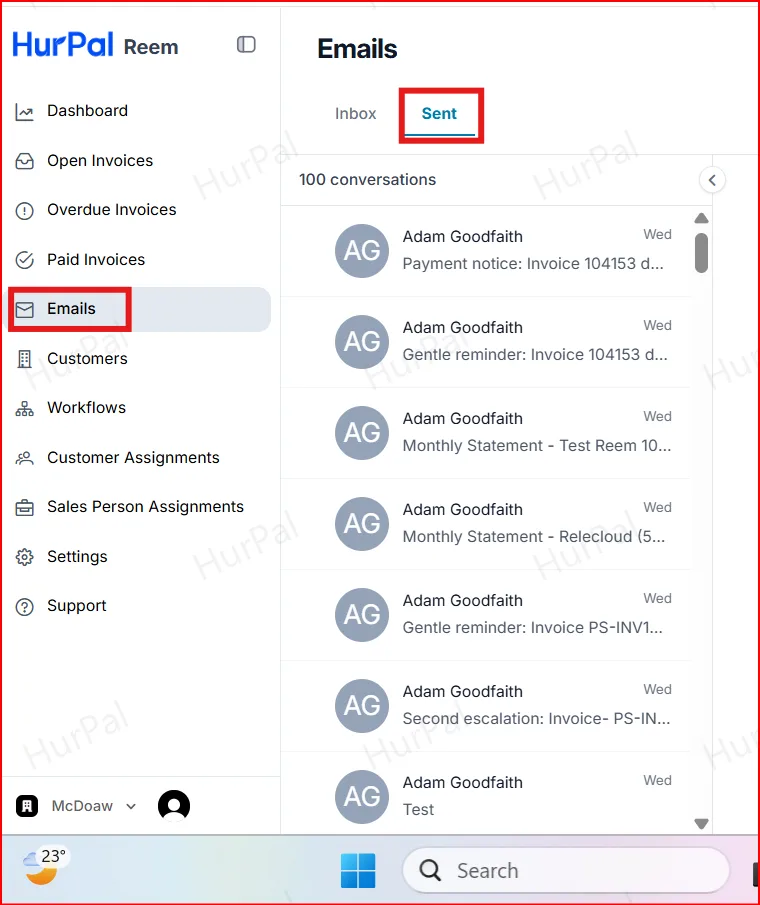
Check the sent emails
Open Emails and select the Sent tab to see the emails that have been sent.
Part 3: Schedule notifications and statements
-
Open Settings
Open Settings. Email Configuration shows the shared mailbox Reem uses to send emails.
-
Schedule the jobs
Under Workflow Automation, click Edit on Reminders or Statements to change when they run. Click Run history to see past runs.