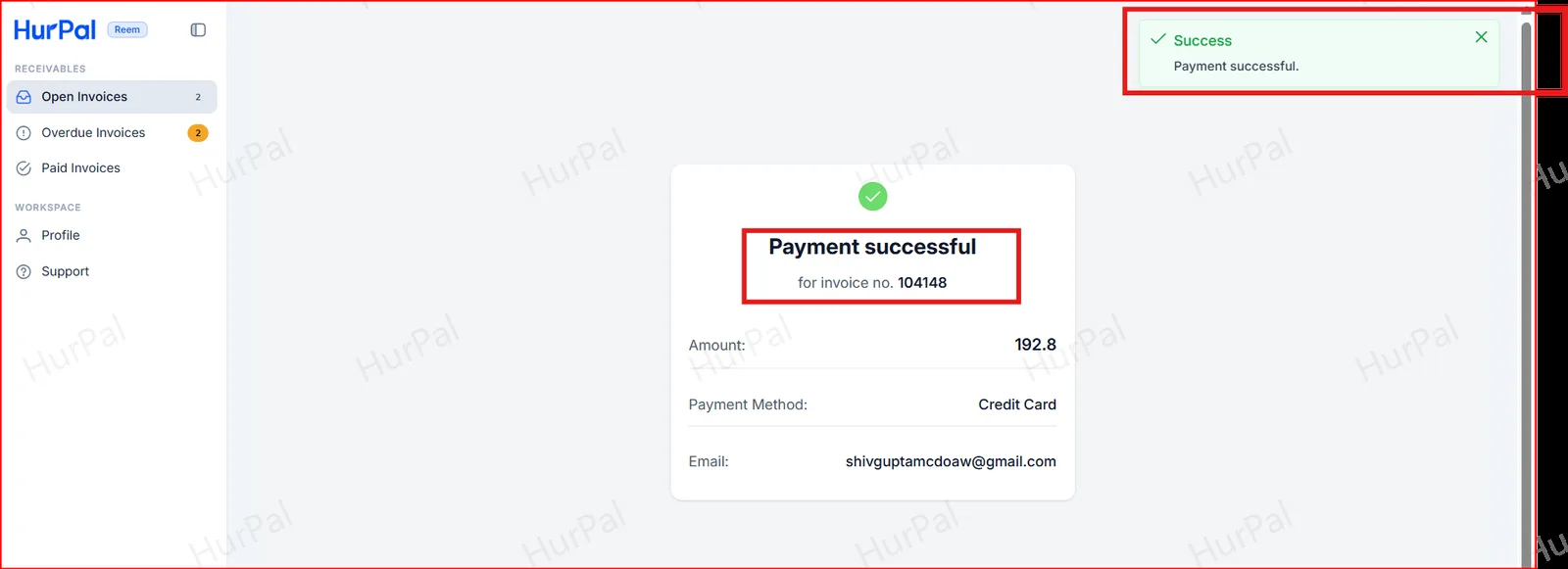
Pay an invoice as a customer
Use this to pay an invoice in the Reem portal. You’ll open the payment notice, review your open invoices, and pay by checkout.
Before you start
You need to have accepted your Reem invitation and completed your profile. See Create and invite a customer.
-
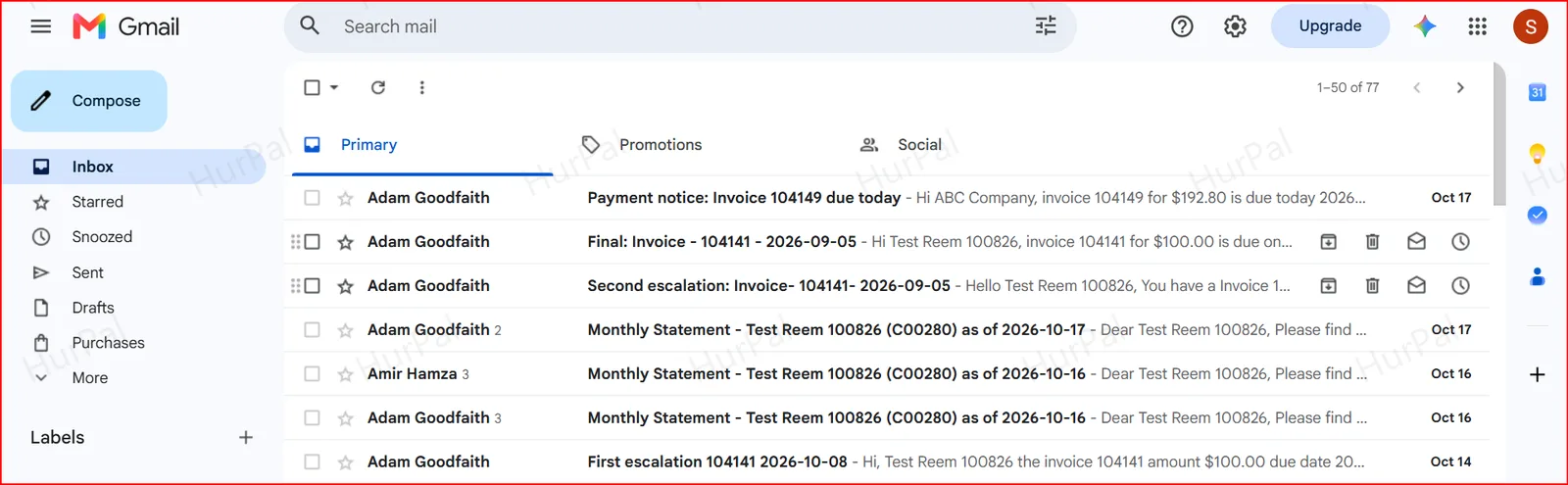
Open the payment notice
Open the email notification you received and click View Invoice.
-
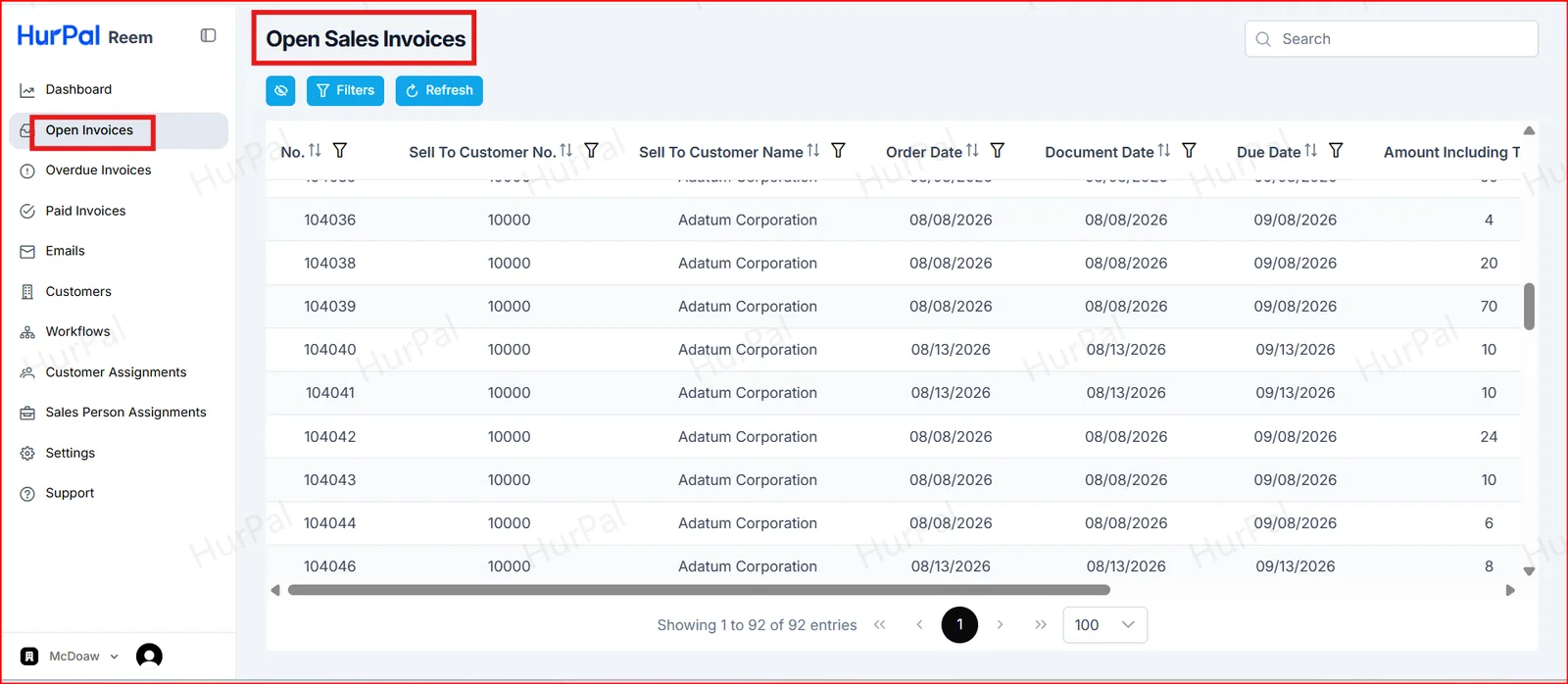
Review your open invoices
In the portal, open Open Invoices to see all outstanding invoices.
-
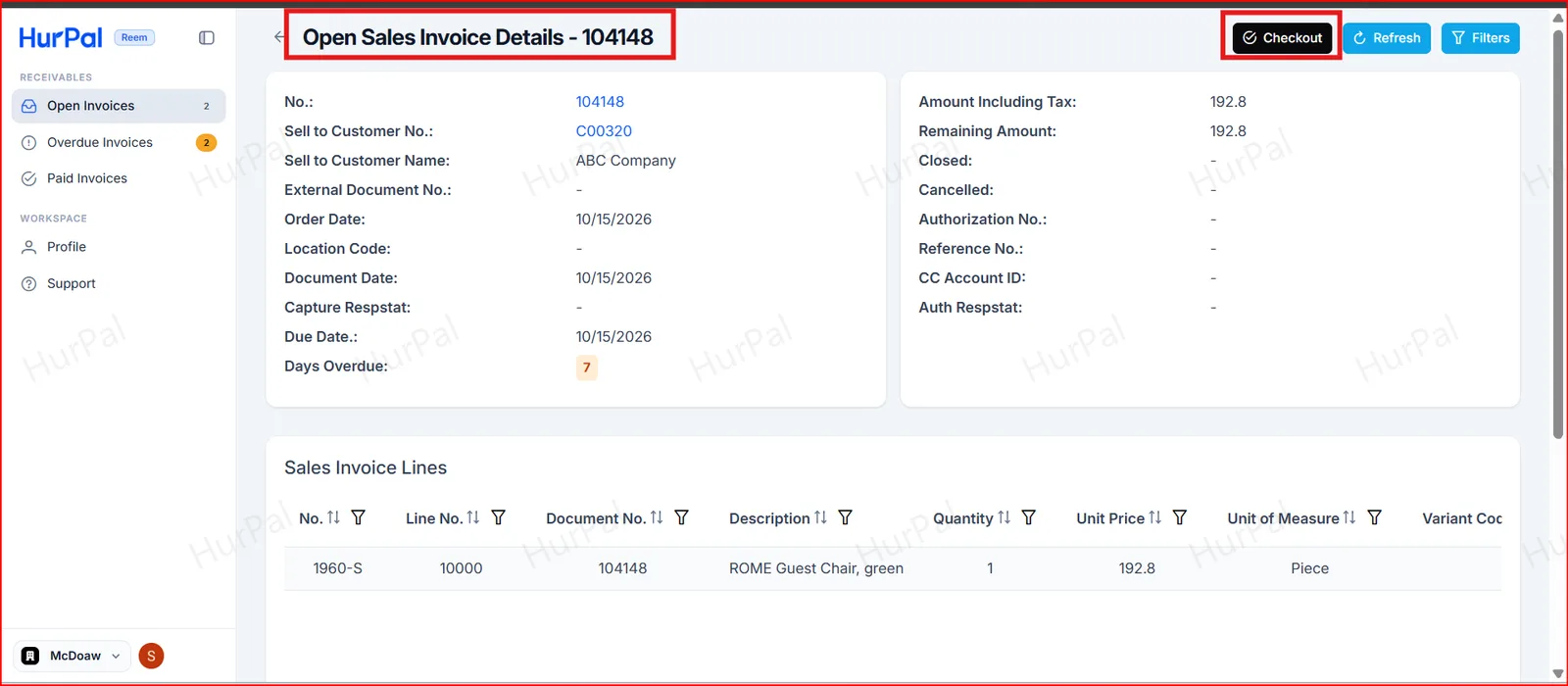
Start checkout
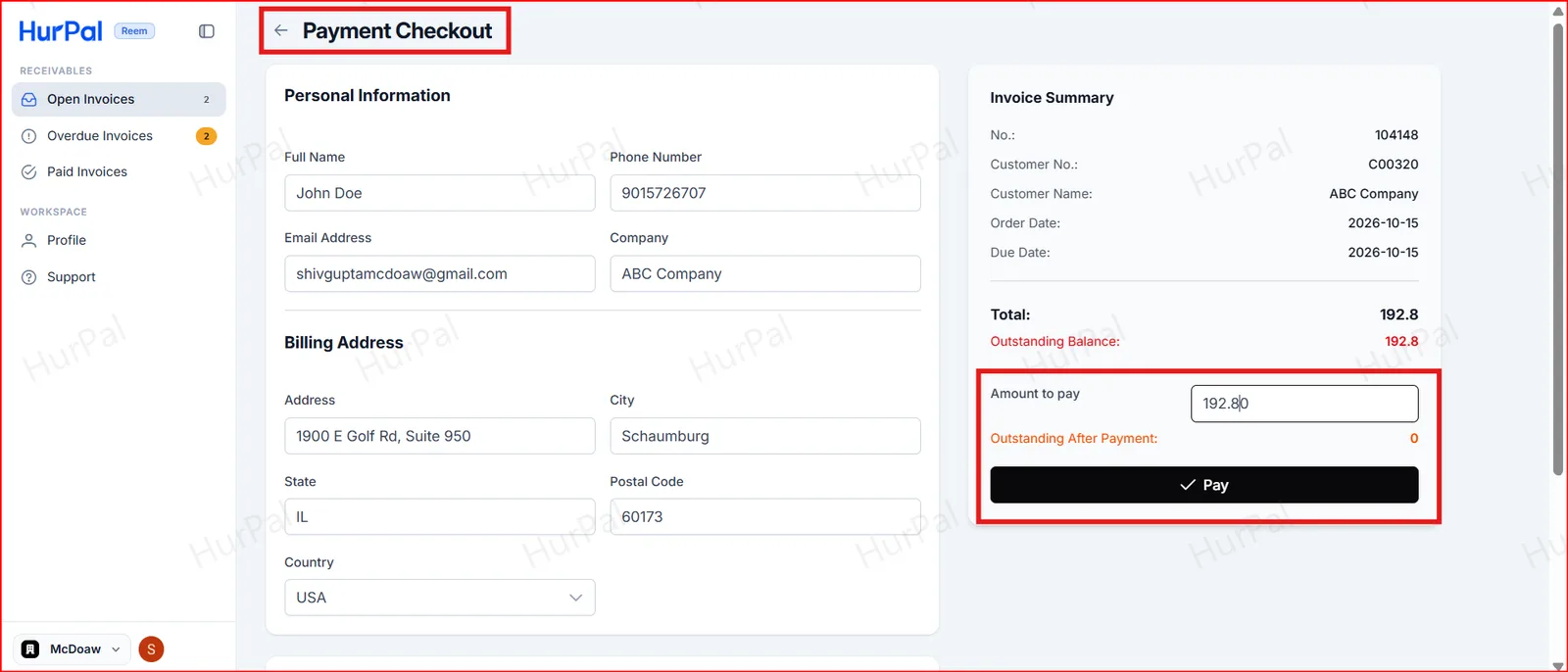
Select the invoice and click Checkout. The Payment Checkout page opens.
-
Enter the amount and pay
Enter the Amount to pay, then click Pay. Outstanding After Payment shows what remains.
-
Check the confirmation
A Payment successful message shows the invoice number, amount and payment method.