Sales quote detail
The sales quote detail page shows the full profile of a single quote. You open it by clicking a quote in the quotes list. The page holds quote and financial information, line items, an approval workflow, and a link to the related opportunity.
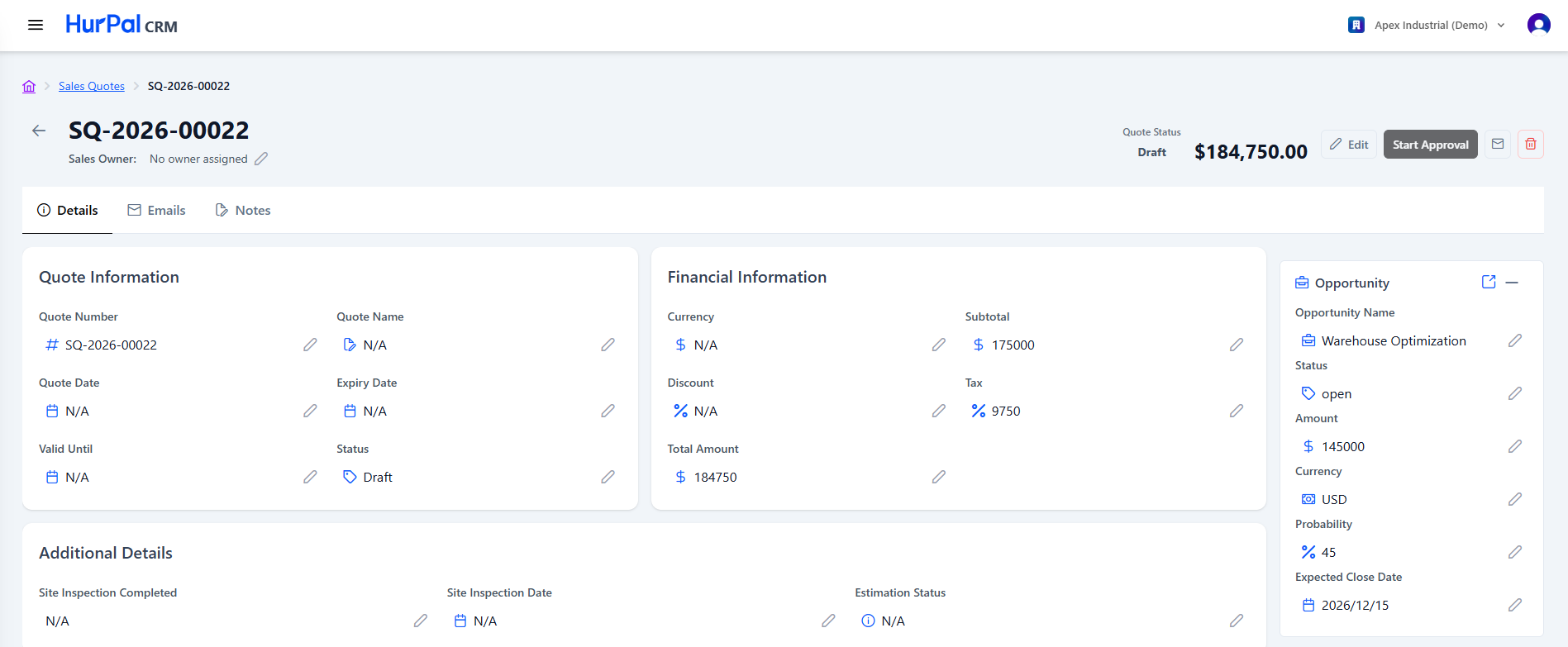
Header
| Element | Description |
|---|---|
| Back arrow | Returns to the quotes list. |
| Quote Number | The identifier of the quote. |
| Sales Owner | The assigned sales representative, or "No owner assigned". Edit it with the pencil icon. |
| Quote Status | The quote's lifecycle status, for example draft. |
| Approval Status | The quote's approval state, shown as a badge: draft, pending, approved, or rejected. |
| Total Amount | The quote's grand total, shown prominently. |
| Edit | Opens the quote in edit mode. |
| Start Approval | Starts the approval workflow for the quote. |
| Envelope icon | Sends the quote by email. |
| Delete (trash) | Deletes the quote. |
Tabs
- Details: the default view.
- Emails: email correspondence related to the quote.
- Notes: notes added to the quote.
Quote information
Editable fields: Quote Number, Quote Name, Quote Date, Expiry Date, Valid Until, and Status.
Financial information
Editable fields: Currency, Subtotal, Discount (percentage), Tax (percentage), and Total Amount.
Additional details
Editable fields: Site Inspection Completed, Site Inspection Date, and Estimation Status.
Notes and terms
A free-text Notes field for extra context on the quote.
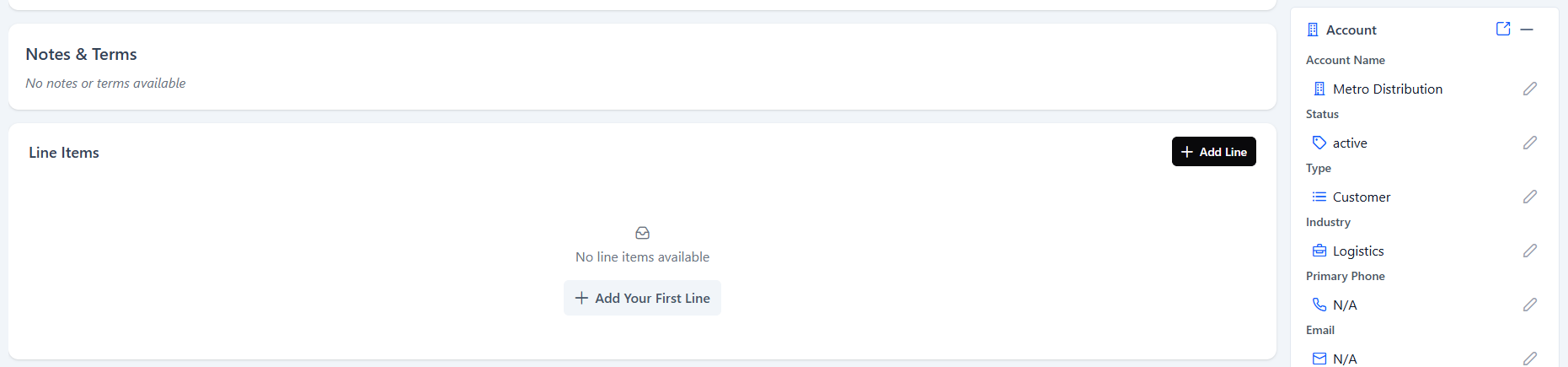
Line items
A table of the products and services on the quote.
| Column | Description |
|---|---|
| # | The line item number. |
| Quantity | The quantity ordered. |
| UOM | The unit of measure, for example Gram. |
| Unit Price | The price per unit. |
| Disc % | The discount percentage applied to the line. |
| Tax % | The tax percentage applied to the line. |
| Line Total | The calculated total for the line. |
| Actions | Edit (pencil) and delete (trash). |
Use Add Line to add a product or service to the quote.
Activity and dates
A footer panel shows the record history: Created Date, Modified Date, and Created By.
Related panels
Three collapsible side panels connect the quote to its context.
Opportunity
Links the quote to its related opportunity, with an external-link icon to open it directly. It shows the Opportunity Name, Status, Amount, Currency, Probability, and Expected Close Date.
Account
Links the quote to its related account, with an external-link icon to open it directly. It shows the Account Name, Status, Type, Industry, Primary Phone, and Email.
Approval workflow
Shows the approval process attached to the quote:
- Code: the workflow identifier, for example AP-00002.
- Name: the workflow name.
- Description
- Stages: the sequence of approval steps, for example "1. Manager Approval".
When you click Start Approval, the quote enters the workflow's first stage and its approval status moves from draft to pending. Approvers then approve or reject each stage in turn until the quote is approved or rejected.