Sales quotes list
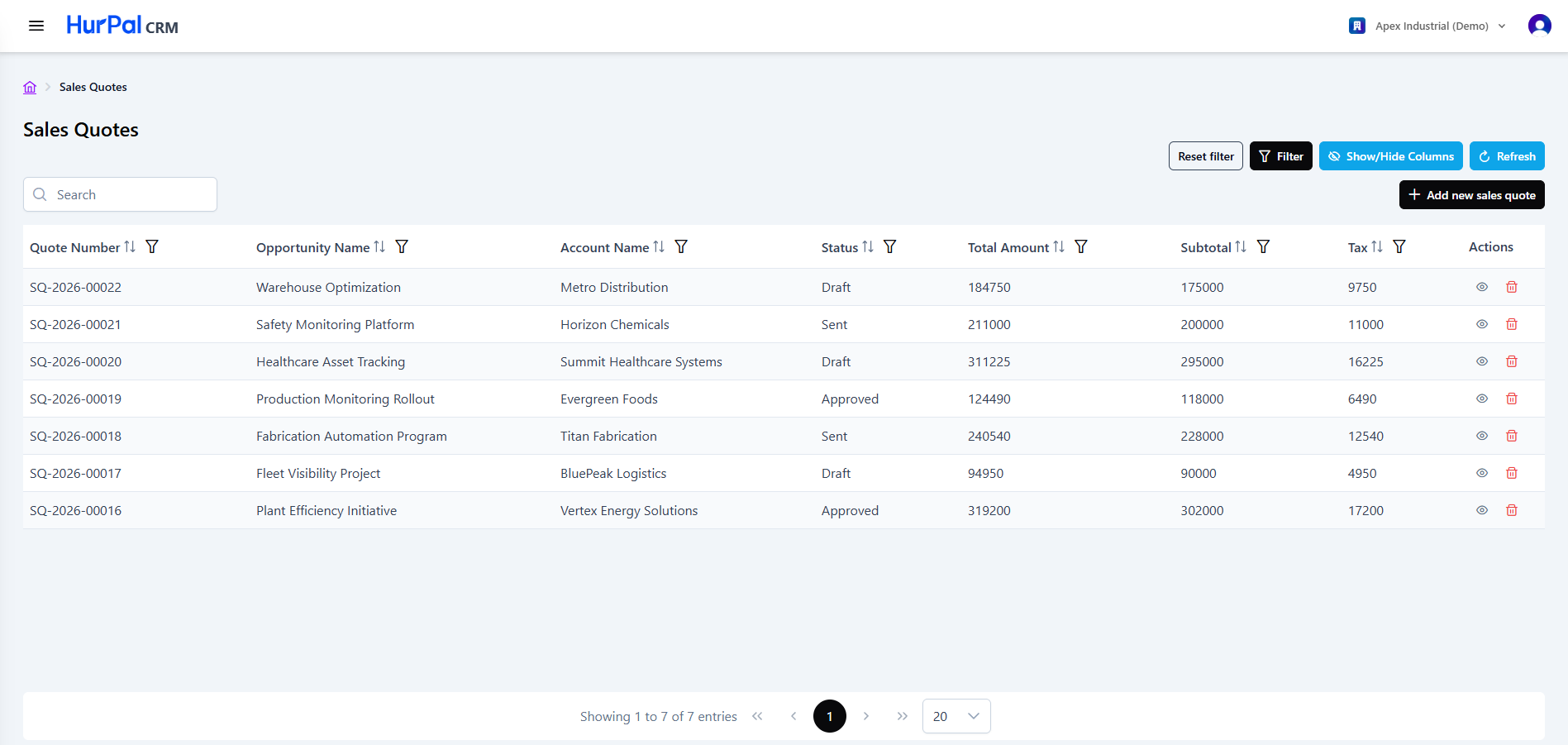
The Sales Quotes screen lists every quote created in the CRM. It follows the same layout as the other list screens.
Toolbar
| Control | What it does |
|---|---|
| Search | Free-text search to find quotes. |
| Reset filter | Clears all applied filters. |
| Filter | Opens the advanced filtering options for the list. |
| Show or hide columns | Chooses which columns are visible in the table. |
| Refresh | Reloads the list with the latest data. |
| Add new sales quote | Opens a form to create a quote manually. |
Sales quotes table
The table lists quotes across the columns below. Most columns can be sorted and filtered.
| Column | Description |
|---|---|
| Quote Number | The unique reference for the quote, for example SQ-2026-00022. |
| Opportunity Name | The deal the quote is tied to. |
| Account Name | The account the quote is associated with. |
| Status | The quote's current status, for example Draft or Sent. |
| Total Amount | The monetary total of the quote. |
| Subtotal | The quote total before tax. |
| Tax | The tax amount applied to the quote. |
| Actions | Row actions: view (eye) and delete (trash). |
Pagination
Below the table:
- A summary shows the current range and total record count, for example "Showing 1 to 7 of 7 entries".
- Page controls (first, previous, numbered pages, next, last) move through the results.
- A page-size selector controls how many rows appear per page.
Adding a quote
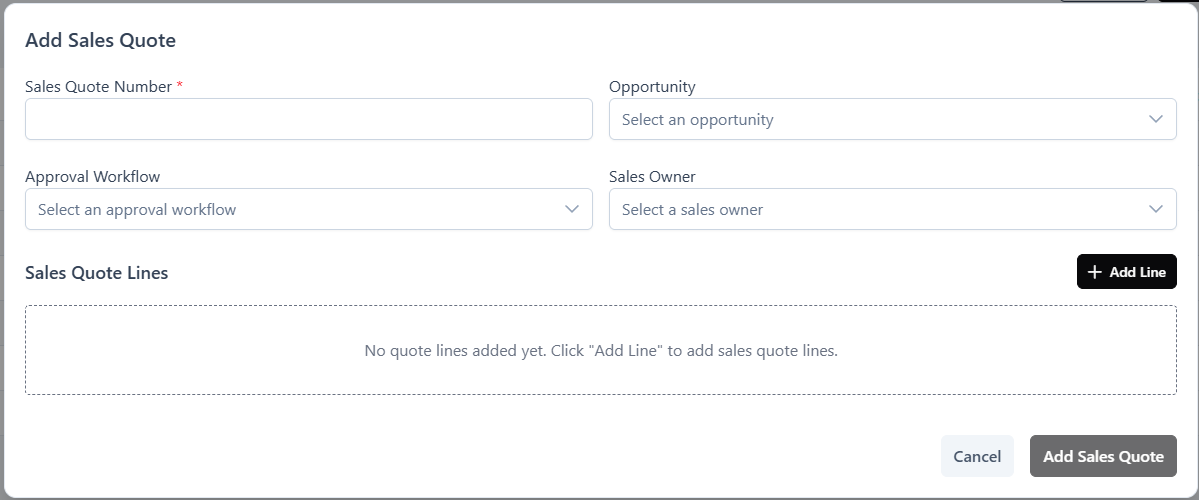
Click Add new sales quote and complete the form. A sales quote number is required. You can also link it to an opportunity, choose an approval workflow, assign a sales owner, and add quote lines directly from the form.
Next steps
Open a quote to review its full details, add line items, and start its approval on the quote detail page.