Product Catalog
Product Catalog is where administrators manage the shared reference data used across sales quotes, purchasing, and projects. You reach it from Settings > Product Catalog.
Tabs
The page is organized into tabs, each managing its own list of records:
- Items
- Units of Measure
- Sales Quote Templates
- Vendors
- Price Lists
- Approval Workflows
- Project Task Templates
Every tab shares the same list layout: a table of records with sortable, filterable columns, an Add new button to create a record, and a refresh control. Row actions include view (eye) and delete (trash).
Items
Items are the products or services you sell or purchase.
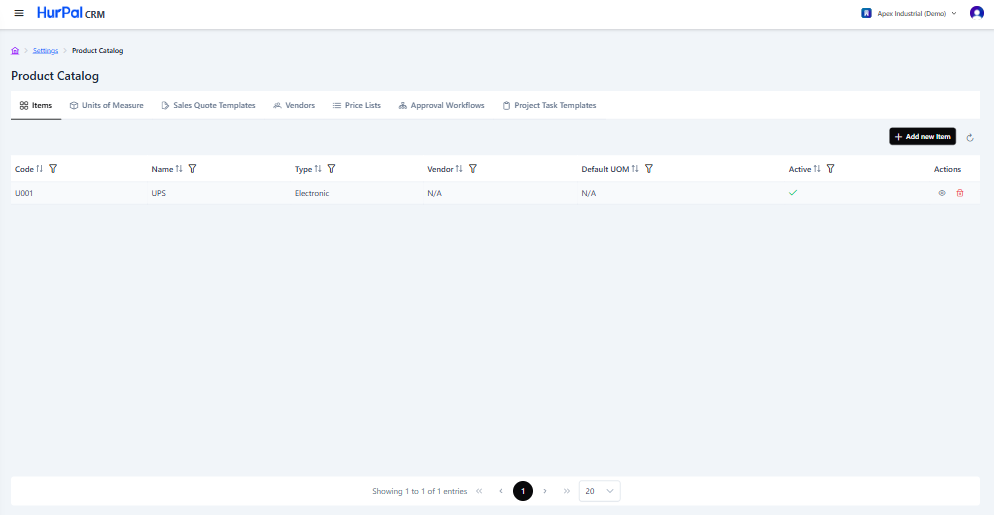
| Column | Description |
|---|---|
| Code | The item's unique code. |
| Name | The item's name. |
| Type | The item classification, for example Electronic. |
| Vendor | The default vendor for the item, or "N/A". |
| Default UOM | The default unit of measure, or "N/A". |
| Active | Whether the item is active. |
| Actions | View or delete the item. |
Click Add new Item to create an item. Opening an item shows its detail page:
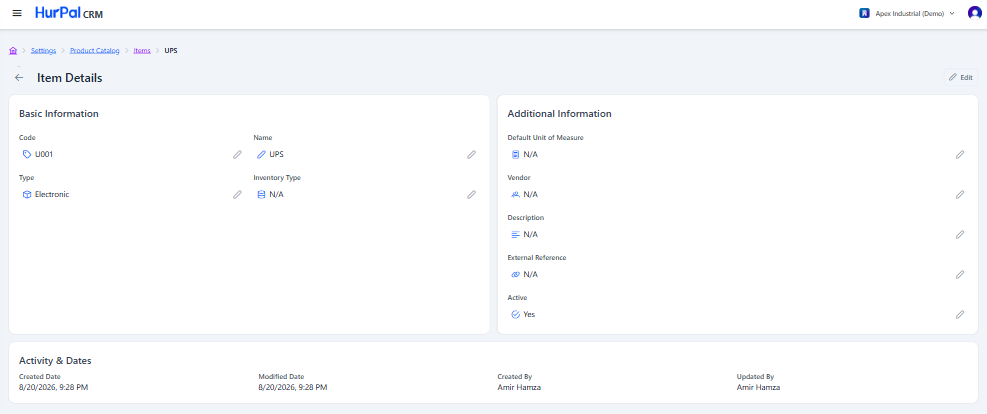
- Basic Information: Code, Name, Type, Inventory Type.
- Additional Information: Default Unit of Measure, Vendor, Description, External Reference, Active.
- Activity & Dates: Created Date, Modified Date, Created By, Updated By.
Unlike the other detail pages in Product Catalog, Item Details has an Edit button in the page header for editing the whole record at once, in addition to the per-field pencil icons.
Units of Measure
Units of measure define how item quantities are counted, for example each, kilogram, or box.
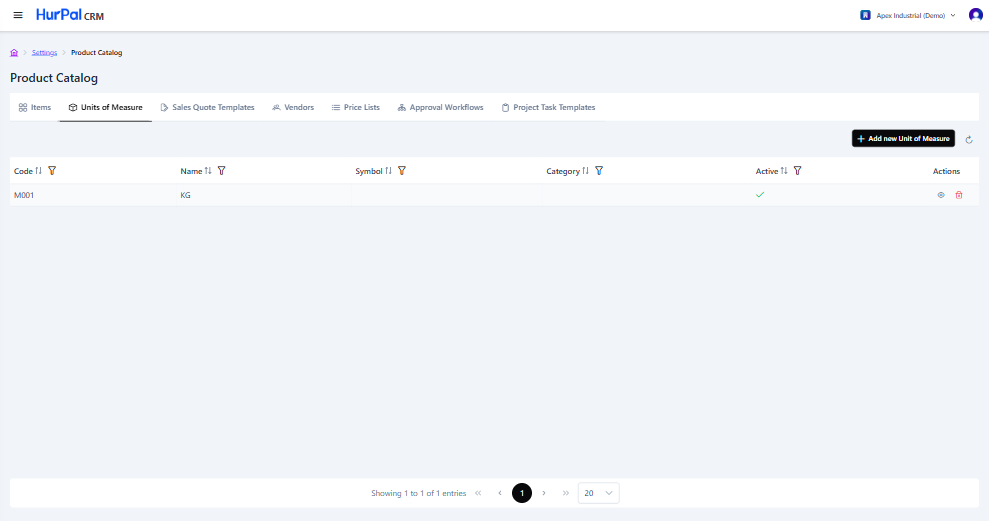
| Column | Description |
|---|---|
| Code | The unit's unique code. |
| Name | The unit's name, for example KG. |
| Symbol | The unit's display symbol. |
| Category | The unit's category, for example Weight. |
| Active | Whether the unit is active. |
| Actions | View or delete the unit. |
Click Add new Unit of Measure to create one. Opening a unit of measure shows its detail page:
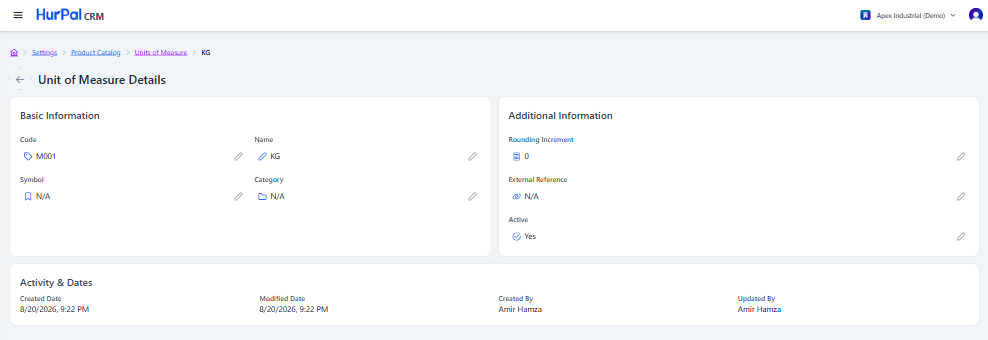
- Basic Information: Code, Name, Symbol, Category.
- Additional Information: Rounding Increment, External Reference, Active.
- Activity & Dates: Created Date, Modified Date, Created By, Updated By.
Sales Quote Templates
Sales quote templates are reusable starting points for building sales quotes.
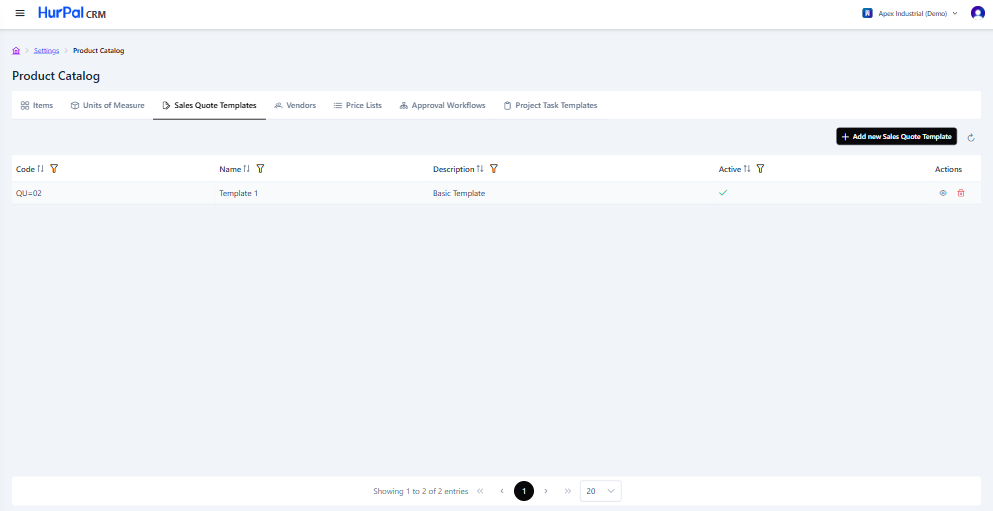
| Column | Description |
|---|---|
| Code | The template's unique code. |
| Name | The template's name. |
| Description | A short description of the template. |
| Active | Whether the template is active. |
| Actions | View or delete the template. |
Click Add new Sales Quote Template to create one. Opening a template shows its detail page:
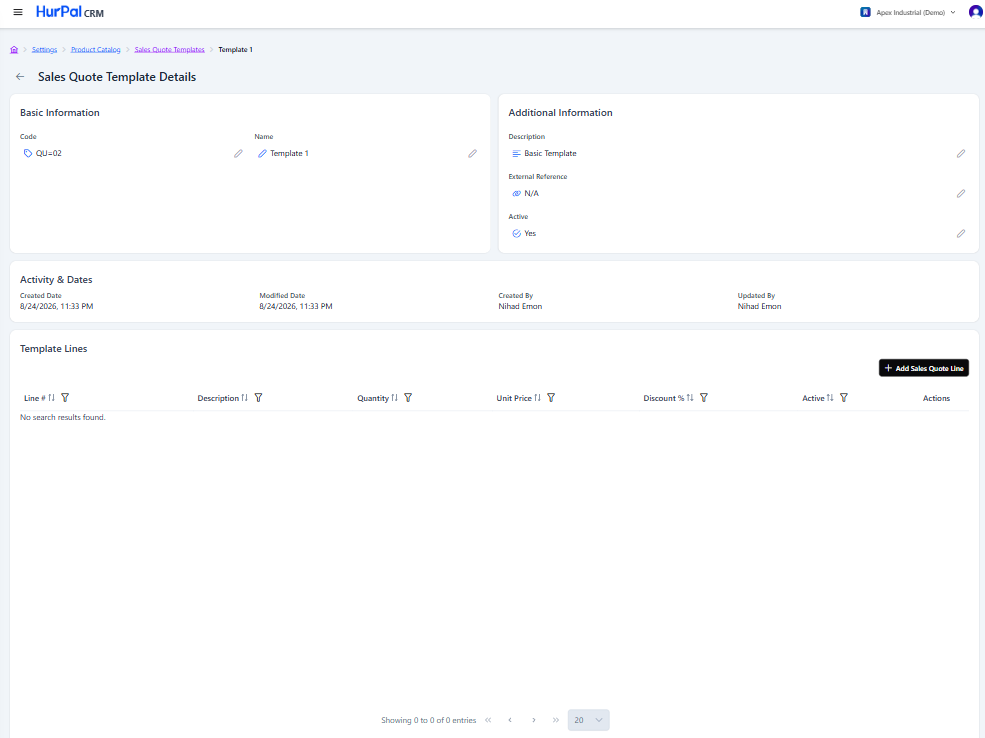
- Basic Information: Code, Name.
- Additional Information: Description, External Reference, Active.
- Activity & Dates: Created Date, Modified Date, Created By, Updated By.
- Template Lines: the line items included in the template, with Line #, Description, Quantity, Unit Price, Discount %, Active, and row actions to edit or delete a line. Use Add Sales Quote Line to add one.
Vendors
Vendors are the suppliers your organization purchases from.
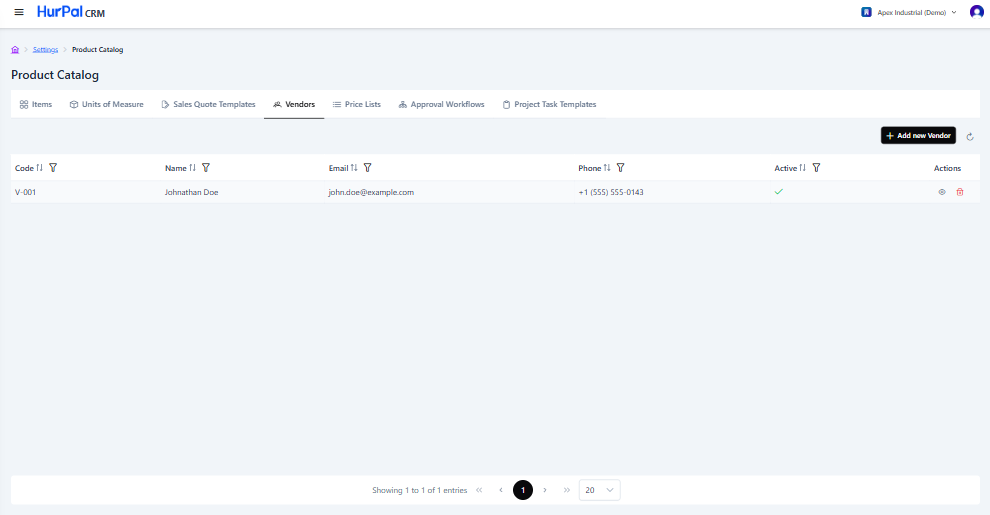
| Column | Description |
|---|---|
| Code | The vendor's unique code. |
| Name | The vendor's name. |
| The vendor's email address. | |
| Phone | The vendor's phone number. |
| Active | Whether the vendor is active. |
| Actions | View or delete the vendor. |
Click Add new Vendor to create one. Opening a vendor shows its detail page:
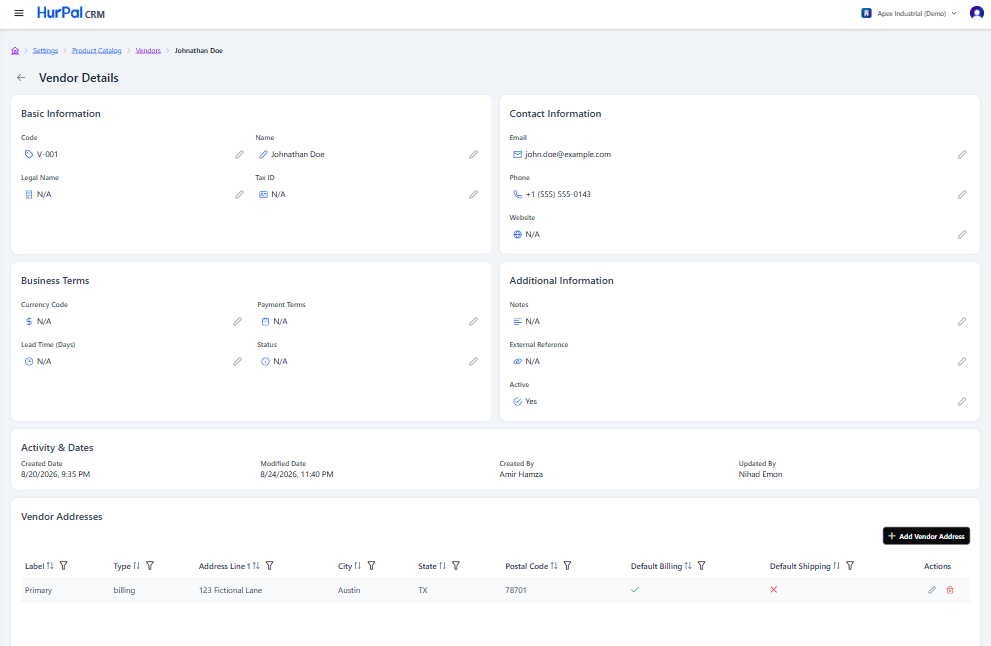
- Basic Information: Code, Name, Legal Name, Tax ID.
- Contact Information: Email, Phone, Website.
- Business Terms: Currency Code, Payment Terms, Lead Time (Days), Status.
- Additional Information: Notes, External Reference, Active.
- Activity & Dates: Created Date, Modified Date, Created By, Updated By.
- Vendor Addresses: a table of addresses with Label, Type, Address Line 1, City, State, Postal Code, Default Billing, Default Shipping, and row actions to edit or delete an address. Use Add Vendor Address to add one.
Price Lists
Price lists set item pricing for a vendor, currency, and date range.
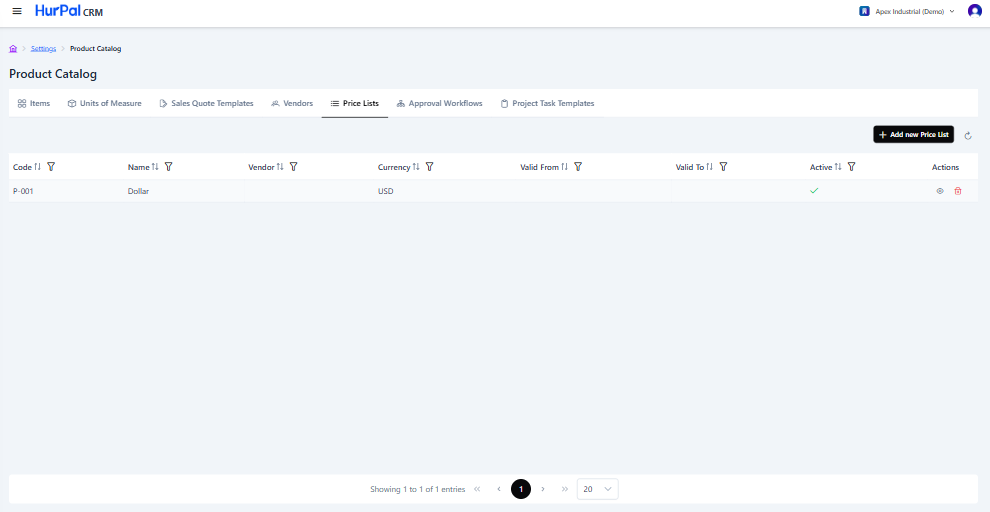
| Column | Description |
|---|---|
| Code | The price list's unique code. |
| Name | The price list's name. |
| Vendor | The vendor the price list applies to. |
| Currency | The currency used for prices. |
| Valid From | The date the price list becomes active. |
| Valid To | The date the price list expires. |
| Active | Whether the price list is active. |
| Actions | View or delete the price list. |
Click Add new Price List to create one. Opening a price list shows its detail page:
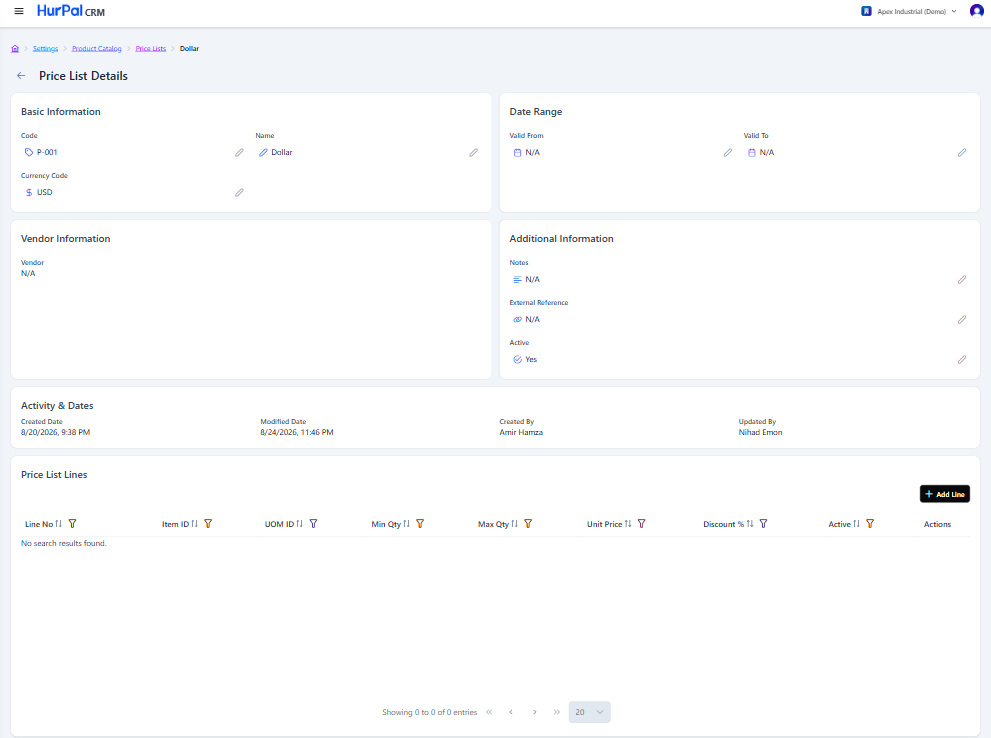
- Basic Information: Code, Name, Currency Code.
- Date Range: Valid From, Valid To.
- Vendor Information: Vendor.
- Additional Information: Notes, External Reference, Active.
- Activity & Dates: Created Date, Modified Date, Created By, Updated By.
- Price List Lines: a table of priced items with Line No, Item ID, UOM ID, Min Qty, Max Qty, Unit Price, Discount %, Active, and row actions. Use Add Line to add one.
Approval Workflows
Approval workflows define the approval stages a record, such as a sales quote, must pass through.
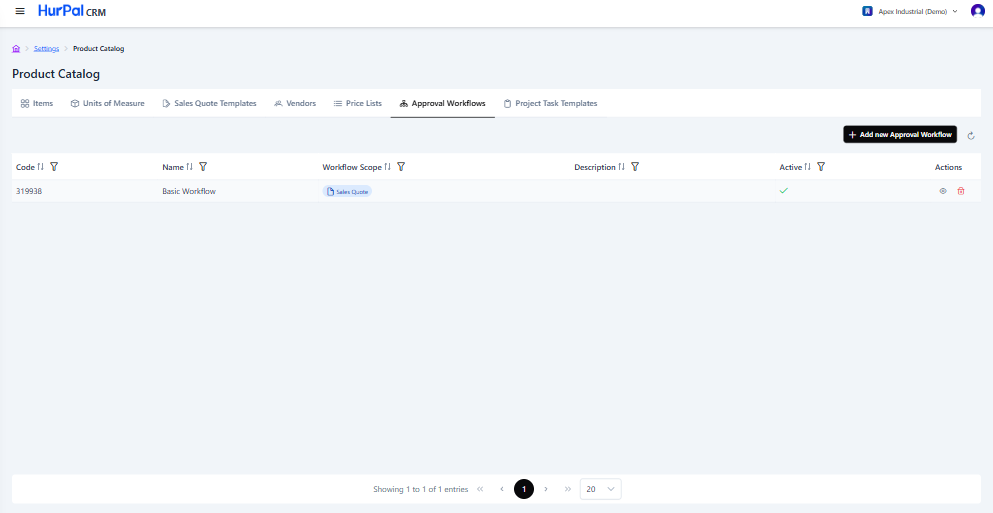
| Column | Description |
|---|---|
| Code | The workflow's unique code. |
| Name | The workflow's name. |
| Workflow Scope | The record type the workflow applies to, for example Sales Quote. |
| Description | A short description of the workflow. |
| Active | Whether the workflow is active. |
| Actions | View or delete the workflow. |
Click Add new Approval Workflow to create one. Opening a workflow shows its detail page:
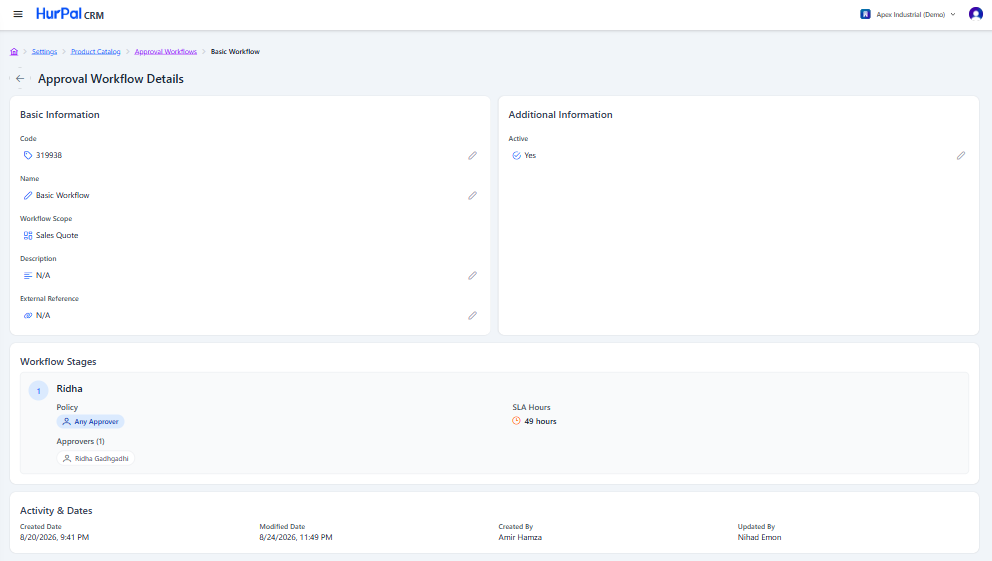
- Basic Information: Code, Name, Workflow Scope, Description, External Reference.
- Additional Information: Active.
- Workflow Stages: numbered stages, each with a Stage Name, a Policy (for example Any Approver), SLA Hours, and the list of Approvers.
- Activity & Dates: Created Date, Modified Date, Created By, Updated By.
Project Task Templates
Project task templates are reusable sets of tasks applied to new projects.
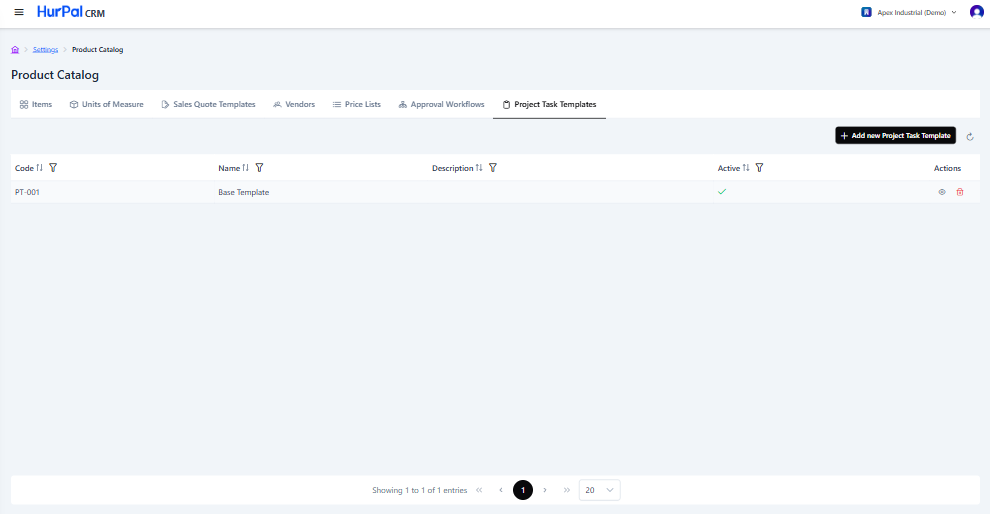
| Column | Description |
|---|---|
| Code | The template's unique code. |
| Name | The template's name. |
| Description | A short description of the template. |
| Active | Whether the template is active. |
| Actions | View or delete the template. |
Click Add new Project Task Template to create one. Opening a template shows its detail page:
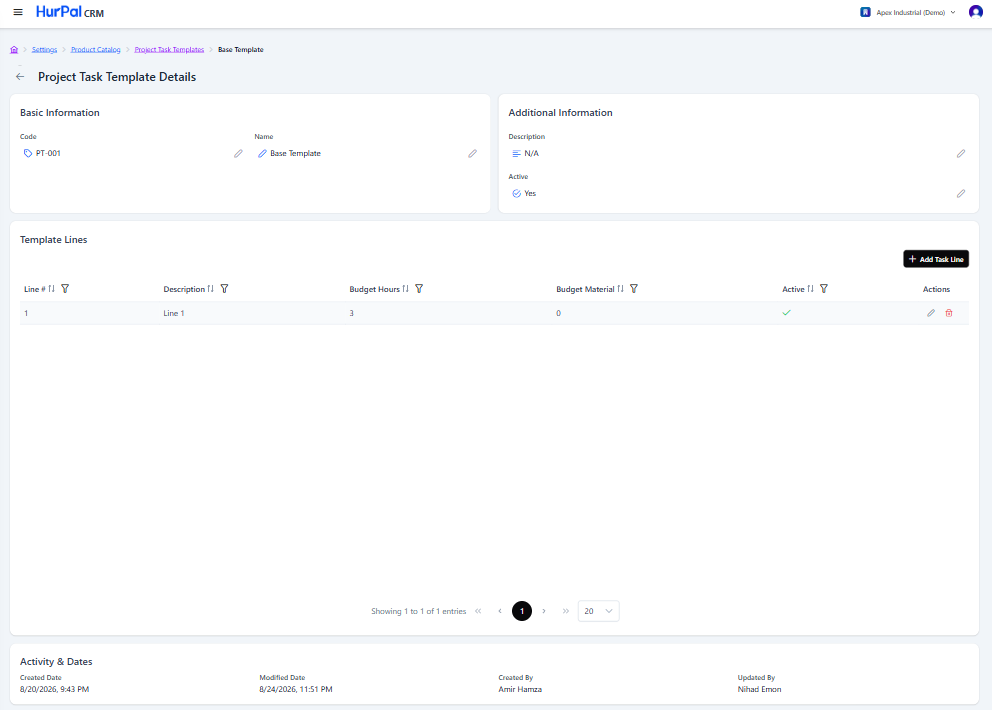
- Basic Information: Code, Name.
- Additional Information: Description, Active.
- Template Lines: a table of tasks with Line #, Description, Budget Hours, Budget Material, Active, and row actions to edit or delete a line. Use Add Task Line to add one.
- Activity & Dates: Created Date, Modified Date, Created By, Updated By.